

A call-to-action might be a small text, but it’s one of the most important parts of your sales funnel. If you don’t use a compelling CTA in the right place, your marketing efforts might become useless.
Table of Contents
The question is how to know if your CTA buttons are working well. Don’t worry! There is a tool for everything, and CTA button tracking is no exception.
In this blog post, we’ll explain why you have to monitor clicks on your CTA buttons and how to do that on your WordPress website.
The Benefits of CTA Button Tracking
Here is why you have to track CTA clicks and analyze the results on your WordPress website:
Understand User Behavior
CTA tracking tells you how your site’s visitors engage with your content and services/products.
For example, you can see if they click your “Start Free Trial” button without going for the premium version. This information helps you find the problem and optimize your sales funnel.
Also, CTA tracking will determine which landing pages appeal more to your visitors, so you can focus on the same content.
Without tracking CTA clicks, you can only see traffic numbers, while CTA monitoring gives you user engagement.
Measure Conversion Performance
One of the biggest concerns of website owners is low conversion rates. In fact, users don’t do what website owners are waiting for.
Button click tracking in WordPress helps you accurately measure conversions and understand which CTA is converting well.
CTA monitoring gives you insights about:
- Newsletter signups
- Product purchases
- Demo requests
- Form submissions
- Affiliate clicks
- Ebook downloads
- Webinar registrations
This helps you detect campaigns that are not working well and eliminate them.
Optimize Budgeting and Improve ROI
When you know well-performing CTAs, you can spend marketing budgets more effectively. For example, you can run ads only to high-converting landing pages and reduce budgets on low-performing CTAs.
So, CTA tracking helps you make measurable decisions instead of guessing.
Improve A/B Testing
CTA tracking is essential for split testing because it lets you compare various elements, like:
- Button colors
- CTA wording
- Button placement
- Button size
- Sticky CTAs vs inline CTAs
To understand the importance of CTA tracking, you can take a look at the following table:
| With CTA Tracking | Without CTA Tracking |
| Understand user behavior | Assumptions |
| Measure conversions | No visibility into button performance |
| Optimize campaigns | Difficult to improve ROI |
| Identify high-performing pages | Guess which pages convert |
| Run effective A/B tests | No measurable testing data |
| Improve lead generation | Miss valuable insights |
The Best Button Click Tracking Plugins on WordPress
Web analytics plugins can help you track your button clicks. Here are some of the best tools in terms of features, pricing, privacy, and support:
1. WP Statistics
WP Statistics is one of the most popular privacy-focused analytics plugins for WordPress users. If you want greater control over your website data while having accurate insights, this is your best chance.
WP Statistics stores analytics data locally inside your WordPress database and doesn’t use it for monetization and remarketing.
It has a clean dashboard with useful metrics. For CTA tracking, you can use various features on WP Statistics, including:
- Link clicks
- User engagement
- Referral traffic
- Campaign performance
- Visitor interactions
More importantly, WP Statistics offers a premium Marketing add-on that lets you define custom events and parameters like Clicks and Views.
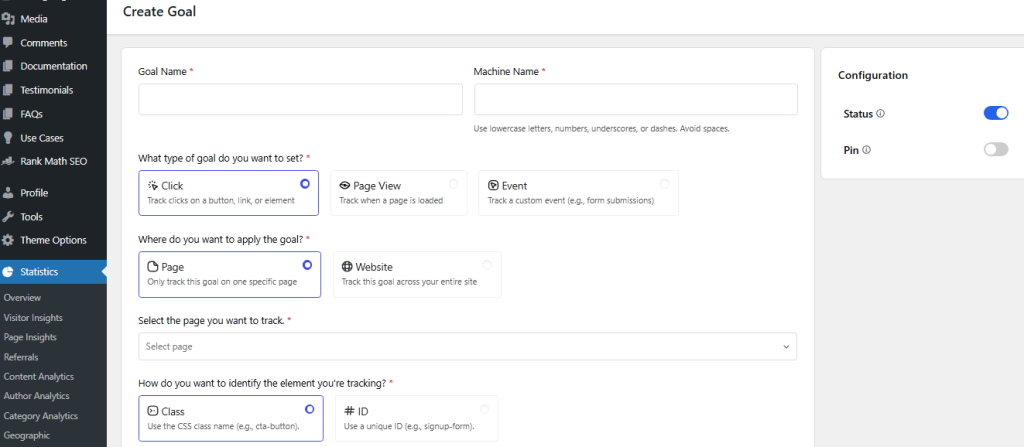
So, you can easily track your CTAs and conversions right in your WordPress dashboard. Here are other Features offered by WP Statistics:
- Real-time visitor tracking
- Referrer tracking
- Geographic visitor reports
- Author Analytics
- Content Analytics
- Page Insights
| Pros | Cons |
| GDPR Compliance | Add-ons might be expensive |
| No third-party sharing | |
| Easy to install and use | |
| 14-day money-back guarantee |
2. MonsterInsights

MonsterInsights is one of the most famous Google Analytics plugins for WordPress. It’s a great option for beginners and small business owners who don’t want to struggle with Google Analytics complex dashboard.
The good news is that apart from simplicity, it offers many of GA4’s features directly on your dashboard, including:
- Button clicks
- Outbound links
- Affiliate links
- Form submissions
- Ecommerce interactions
- File downloads
| Pros | Cons |
| Easy setup process | Premium plans might be expensive |
| Beginner-friendly interface | Not good for professional marketers |
| Strong GA4 integration |
3. ExactMetrics

ExactMetrics is another powerful Google Analytics plugin that simplifies event tracking inside WordPress.
ExactMetrics focuses more on actionable reporting and user engagement insights compared to MonsterInsights.
It provides detailed analytics for CTA tracking using metrics like:
- Button interactions
- Conversion events
- User engagement metrics
- Ecommerce behavior
- Download tracking
- Affiliate link clicks
One of the most important capabilities of ExactMetrics is showing how visitors move through conversion funnels and interact with important pages.
| Pros | Cons |
| Easy setup process | Expensive premium features |
| Good event tracking functionality | Not so flexible with GTM |
| Beginner-friendly reports | Limited advanced features |
| Helpful engagement metrics |
4. Analytify
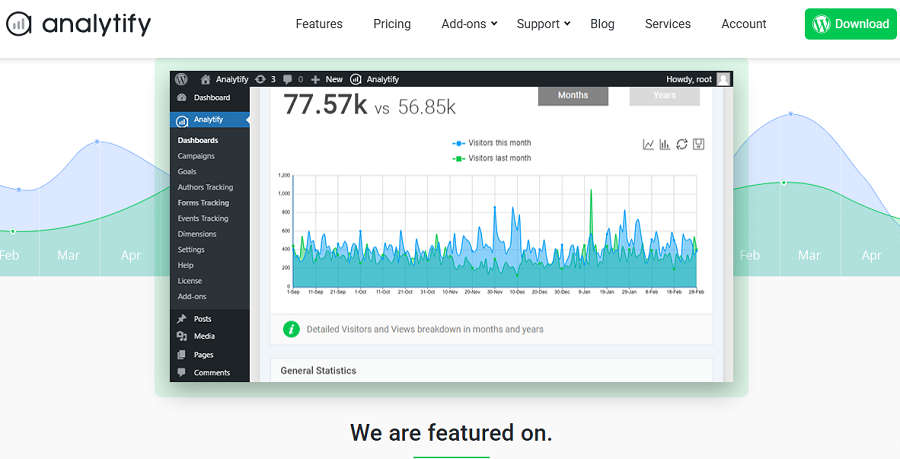
Analytify is a great option in terms of usability and visual reporting. You can enjoy a clean interface with an easy-to-understand format on your dashboard.
This is especially great for CTA tracking and also:
- User interactions
- Campaign performance
- Traffic sources
- Goal completions
- Engagement metrics
Another great feature is that the plugin integrates well with ecommerce platforms and marketing campaigns.
| Pros | Cons |
| Clean visual reporting | Fewer advanced customization options |
| Beginner-friendly interface | Not ideal for highly technical marketers |
5. PixelYourSite
PixelYourSite is designed primarily for marketers, advertisers, and ecommerce businesses. If you need advanced conversion tracking across multiple platforms, this is your best choice.
Simpler analytics plugins focus mainly on reporting, while PixelYourSite specializes in tracking user behavior. This is great for advertising optimization and remarketing campaigns.
The plugin supports integrations with:
- GA4
- Meta Pixel
- TikTok Pixel
- Pinterest tracking
- WooCommerce events
For CTA tracking, PixelYourSite can monitor add-to-cart actions, purchase events, lead generation buttons, dynamic ecommerce interactions, and funnel conversions.
| Pros | Cons |
| Excellent advertising integrations | More complex than beginner plugins |
| Strong ecommerce tracking | Advanced setups need technical knowledge |
| Advanced conversion capabilities | |
| Supports multiple ad platforms |
Advanced CTA Tracking Using Google Tag Manager
You can easily use GA4 plugins to track CTAs, but it’s not enough for marketers who need advanced control over event tracking.
Fortunately, GTM lets you create highly customized tracking setups. Google Tag Manager is a tag management system that allows you to run tracking scripts without editing your WordPress code.
It works by using triggers, variables, tags, and events, making it far more flexible than basic plugin tracking.
GTM lets you track various types of clicks and elements, including:
- Popup CTA buttons
- Dynamically loaded elements
- Custom event parameters
- Advanced triggers
- Multiple button types
Here are the steps to use GTM for advanced CTA tracking on your WordPress website:
Step 1: Install Google Tag Manager on WordPress
First, create a Google Tag Manager container for your website. Then install GTM on WordPress using one of these methods:
- A GTM plugin
- Manual code insertion
- Theme integrations
After installation, make sure that GTM is loading correctly on your website before continuing.
Step 2: Configure Your Google Analytics Tag in GTM
You need to connect GTM with Google Analytics 4. Inside GTM, create a new tag and choose Google Analytics Tag.
Then, enter your GA4 Measurement ID and set the trigger to Initialization. Now, you’ve built the connection between GTM and GA4, so events can be sent properly.
Step 3: Enable Built-In Click Variables
Inside GTM, open the Variables section and enable built-in click variables.
Useful variables include:
- Click Text
- Click Classes
- Click ID
- Click URL
- Click Element
These variables help GTM identify which CTA button users clicked.
Step 4: Create a Click Trigger
Create a new trigger:
- Trigger Type: Click – All Elements
Then configure conditions such as:
Click Classes contains cta-button
This ensures GTM only tracks clicks on specific CTA buttons instead of every click across the website.
Step 5: Create a GA4 Event Tag
Next, create a GA4 event tag. Inside the tag settings:
| Setting | Example |
| Tag Type | Google Analytics: GA4 Event |
| Event Name | cta_click |
| Event Parameter | button_text |
| Event Parameter | page_location |
| Event Parameter | click_url |
Attach the click trigger you created earlier. This sends CTA interaction data directly into GA4.
Step 6: Test Using Preview Mode
Before publishing changes, always test your setup using GTM Preview Mode. You have to make sure that the click trigger activates correctly and the GA4 event tag fires properly.
You can also verify events inside GA4 DebugView. Testing is critical because incorrect triggers can flood GA4 with inaccurate data.
Step 7: Publish Your GTM Container
After successful testing, click Submit and add a version name if you want. Finally, publish your container to make your CTA button tracking setup live.
Tips to Increase CTA Conversion
Now that you’ve learned how to track CTAs on your WordPress website, it’s good to consider the following tips to improve their effectiveness:
1. Improve CTA Placement
The place you put your CTA considerably impacts its visibility and user engagement.
Here are some good examples of CTA placement that usually have good results:
- Above the fold
- After key benefits
- End of blog posts
- Sticky headers
- Sidebar lead magnets
Users shouldn’t need to search for your CTA.
2. Use Strong Color Contrast
People unintentionally look at colorful points on your web pages. So, it’s important to make your CTA buttons stand out using a different color compared to the background.
Remember that a Good CTA design should have:
- High contrast colors
- Clear whitespace
- Large clickable areas
- Consistent styling
These simple changes can significantly increase your conversions.
3. Use Compelling CTA Text
You have to write specific texts for your CTA that drive value. The following table compares strong and weak CTAs:
| Weak CTA | Better CTA |
| Submit | Get My Free Guide |
| Learn More | See Pricing Plans |
| Contact Us | Book a Free Consultation |
| Click Here | Start Your Free Trial |
As you can see, you can mention the exact action you want users to take instead of something general like “Submit” or “Learn More.”
4. Optimize for Mobile Devices
The majority of website traffic is now coming from mobiles. So, you have to make your pages, especially the CTA, mobile-friendly.
So, make sure that your CTA buttons are visible and easy to tap on mobiles. Also, you have to make sure that page speed is good for mobile users because if it loads slowly, they probably ignore the CTA.
5. Reduce Distractions
Your CTA must be easily found by users. If you put too many competing elements around it, you might reduce CTA effectiveness.
So, try to avoid:
- Excessive popups
- Multiple primary CTAs
- Cluttered layouts
- Distracting animations
6. Use Psychological Triggers
Some psychological factors greatly impact the performance of CTAs. Try to consider the following triggers when creating CTAs:
- Urgency
- Scarcity
- Social proof
- Exclusivity
- Curiosity
For example, you can add “Limited Time” to the CTA to add a sense of urgency and make users click.
7. Use Heatmaps and Behavior Analytics
Apart from the CTA tracking tools we introduced, you can take advantage of analytics features like a heatmap. This helps you monitor user engagement on your pages, especially on your CTAs.
Heatmaps can visualize user behavior and show which CTAs users click and how far users scroll.
Popular tools, like Hotjar, Microsoft Clarity, and Crazy Egg, offer effective heatmap features that are great for CTA tracking.
Conclusion
CTAs are key elements in your sales funnel, and if they don’t attract visitors, you’ll face a low conversion rate and ROI.
So, you have to constantly track them and analyze the results to find any probable issues. There are a bunch of methods for CTA button tracking in WordPress.
For advanced users, GTM triggers on clicks and integrating them with GA4 is the best method.
For small and medium businesses, WordPress analytics plugins work great. WP Statistics, for example, is a powerful analytics tool that offers button click tracking features without violating privacy and data protection rules.
FAQs
What does a CTA button mean?
A call to action is actually an element on a website or mobile app that encourages users to take a specific action. It’s usually a visual prompt with a text that asks users to do something, such as sign up, buy now, or join.
How to track a button click using GTM and GA4?
You need to create a GA4 event tag and also a specific trigger linked to the button’s elements.
What is the best CTA button tracking plugin for WordPress?
WP Statistics offers advanced features for tracking user interactions, including clicks. You can enable the Marketing add-on and define custom events on Clicks and track CTAs.