
The best way for WordPress user activity tracking.
Table of Contents
Monitoring a website’s performance is not just about traffic. If you want to optimize your content, design, and sales funnel, you have to analyze visitors’ behavior, especially the behavior of registered users.
You need to understand what your logged-in users like or dislike and detect the difference between their behavior and that of anonymous visitors.
You have to know where they land, what they interact with, and when they leave your website.
This way, you can improve your website’s user experience and make it more engaging according to your target users’ behavior.
So, if you want to have a successful website, learn how to track user activity on your website.
Why Track User Activity on Your Website?
Before learning the methods to track user activity, it’s good to review the benefits of logged-in users’ activity monitoring:
1. Understand Popular Pages
User activity tracking lets you know how logged-in users come to your site and what page makes them leave your site.
If you can list the most and the most popular pages of your registered users, you can optimize your site accordingly. In fact, logged-in users are your loyal visitors, and you need to consider their interests when optimizing your site.
2. Find the Difference
You can compare the results of user activity tracking with anonymous traffic to see if you are targeting the right people.
This way, you can align your campaigns with your niche audience to gain maximum exposure.
3. Measure Your Performance
When you track your logged-in users, you can see if you have been successful in attracting anonymous visitors. If the number of registered users is much lower than anonymous traffic, you must revise your strategies, including CTA, offer, design, and navigation.
The Best Tools for WordPress User Activity Tracking
To track the activity of users on your website, you need an effective web analytics tool. The following table compares the best analytics tools that help you monitor your logged-in users’ activity on WordPress websites:
| Tool | Logged-In Tracking | Role Segment | Privacy-Friendly | Pricing |
| WP Statistics | ✔️ | ✔️ | ✔️ | Free + Add-ons |
| GA4 | ⚠️ Requires setup | ⚠️ Custom configuration | ⚠️ | Free |
| Matomo Analytics | ✔️ | ⚠️ Limited | ✔️ | Free + Cloud |
| MonsterInsights | ✔️ | ⚠️ Limited | ⚠️ | Freemium |
Let’s review some more details about these tools:
1. WP Statistics
WP Statistics is a WordPress analytics plugin that offers advanced monitoring features directly on your website’s dashboard.
It can track user activity, visits, referrers, search queries, browsers, and even real-time online users. You can also pay for some useful add-ons to track some of the insights, like marketing campaigns.
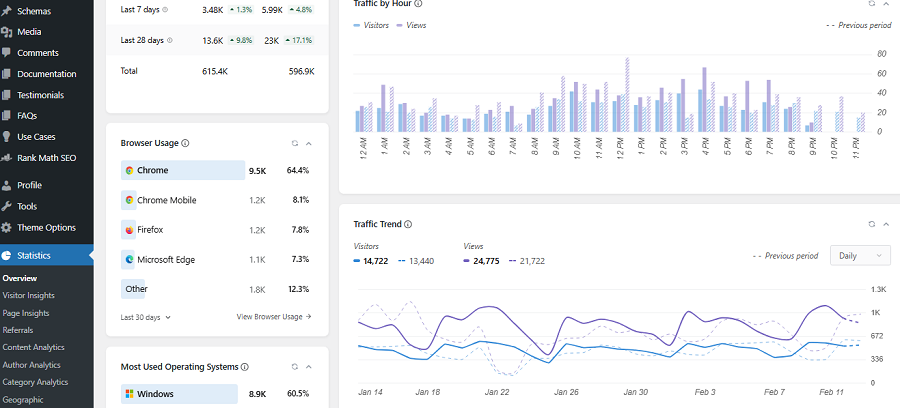
The good news is that WP Statistics offers GDPR-compliant analytics services. Unlike other tools that use cookies to track users’ behavior across the web, it offers a privacy-first approach.
It allows you to enable logged-in user tracking. This way, you can monitor the behavior of your registered users with details.
Of course, if you want to enable logged-in tracking, you might have to use a consent banner on your site so that your registered users understand what information you’re collecting.
It also avoids sharing and selling data with third-party tools, making it a great option for businesses that care about data protection.
So, if you want to track user activity log on your WordPress website without violating their privacy, WP Statistics is your best option.
2. Google Analytics 4 (GA4)
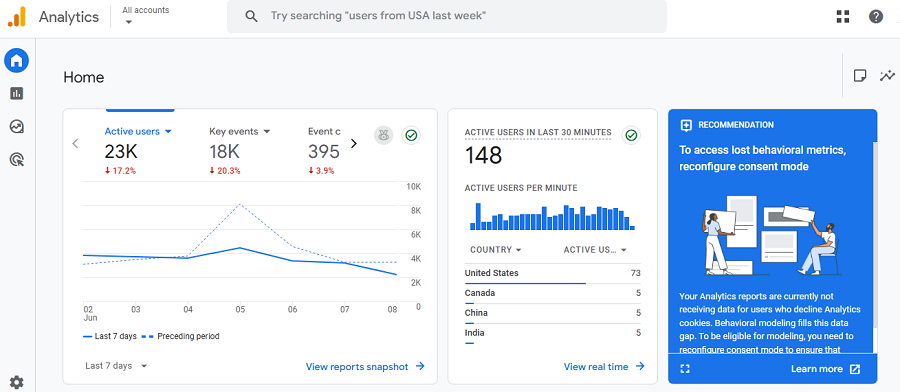
Google Analytics is one of the most popular web analytics platforms for tracking user engagement and conversions.
Although it’s more complex than most WordPress analytics plugins and is not GDPR-compliant by default, many website owners still rely on it for advanced reporting and detailed user insights.
GA4 uses an event-based tracking model that records how users interact with your website, including page views, scrolls, clicks, video engagement, downloads, and more.
It can also help you analyze the behavior of logged-in users by using features like User-ID tracking and custom events.
The thing is that GA4 is not a native WordPress plugin. To do that, you need to use Google Tag Manager (GTM) to send the ID after user login.
You can then create custom reports and compare different user segments, traffic sources, devices, and engagement metrics according to your goals.
This is much more difficult than using WP Statistics and requires an experienced developer to configure custom tracking settings.
3. Matomo Analytics
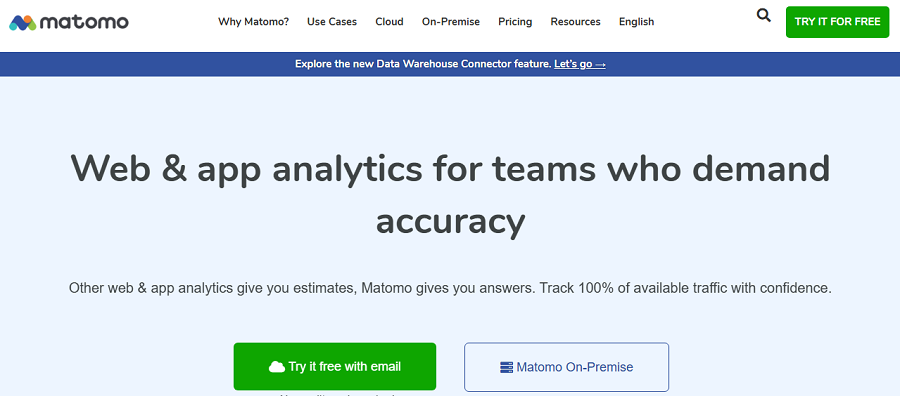
If you’re looking for a strong privacy-focused tool that tracks logged-in user activity along with visitor behavior, Matomo is your best chance.
It’s a famous alternative to GA4 and can track lots of web analytics metrics with high accuracy.
Using this tool, you can track:
- Page views
- Session duration
- Bounce rates
- Logged-in user and visitor flow
The great news is that it allows you to store data on your own server.
Moreover, Matomo’s heatmaps, session recordings, and goal tracking are really sought-after among organizations that care about data protection.
4. MonsterInsights

MonsterInsights is a popular analytics plugin that helps you connect GA4 with your WordPress dashboard without complicated setup steps.
It makes monitoring user activity easy without navigating through complex Google Analytics reports. You can view important engagement metrics from your admin area.
MonsterInsights can help you track:
- Logged-in user behavior
- User journeys
- Conversions
- Downloads
- Form submissions
- eCommerce activity
Although MonsterInsights depends on Google Analytics data, it’s a much more beginner-friendly option for WordPress users.
Use WP Statistics to Track Logged-in User Activity
Now, let’s see how you can use these tools to track a WordPress website’s user activity. First, we’ll explain how you can install WP Statistics and use it for user behavior monitoring:
1. Installation
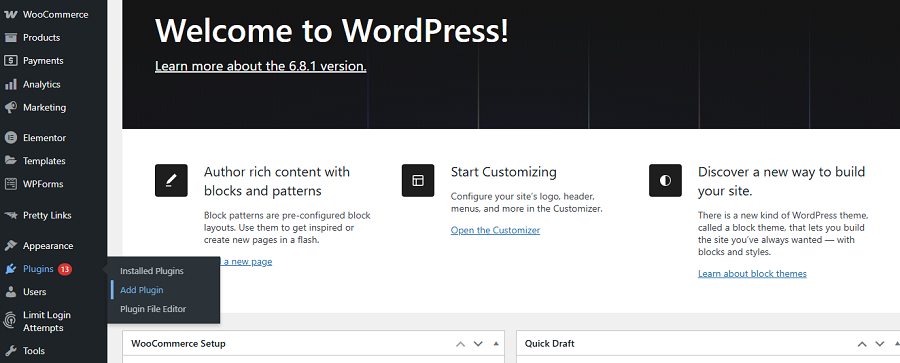
You can start by going to your WordPress dashboard → Plugins → Add Plugin. Then, you have to search for “WP Statistics.”
You’ll find the plugin among other options. Now, click “Install” and then activate the plugin. After that, you’ll find a new tab in your admin sidebar: Statistics.
2. Setting Up
Before going to tracking menus, it’s essential to configure the tool according to your needs and goals.
Go to Settings under Statistics and change items like:
- Online Visitors: You can choose if you want to track online visitors. It gives you the ability to understand how long they have been on your site.
- Track Logged-In User Activity: If you activate it, you can monitor and record user behavior based on their engagement. Remember that this will impact user privacy, and you need to use a consent banner on your site.
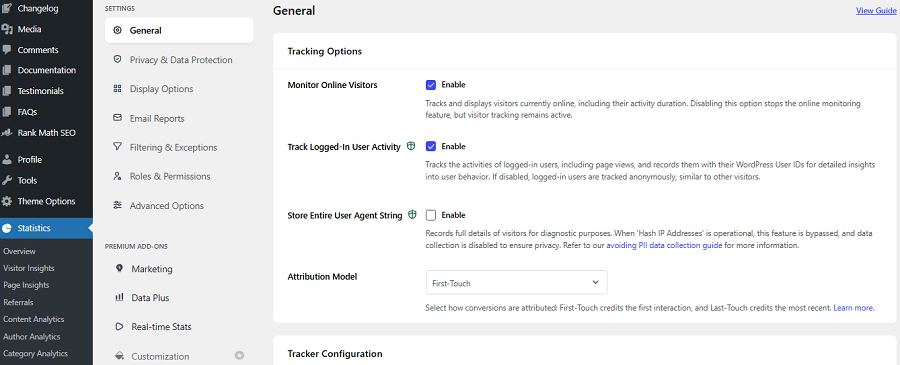
- Tracking Method: You can choose between client-side or server-side methods.
- Bypass Ad Blockers: If you activate this option, WP Statistics will dynamically load the script with different names and addresses to bypass ad blockers.
- Data Protection: WP Statistics anonymizes and hashes IP addresses by default. You can disable this option, but you have to expect privacy concerns.
3. Track User Activity on WordPress
When you click Statistics in your sidebar, you’ll see an instant overview of weekly performance, visitors, views, and a summary of important metrics like top pages and search queries.
To dig deeper into user activity on your WordPress website, you can go to other sections like Visitor Insights.
Here, you can see details like Online Visitors:
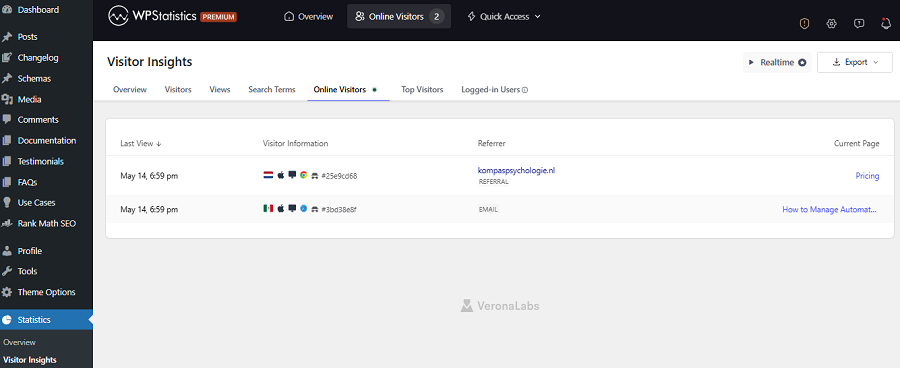
You can also segment logged-in users by their role, like Admin, Author, Editor, and Customer, to compare their traffic with that of anonymous visitors.
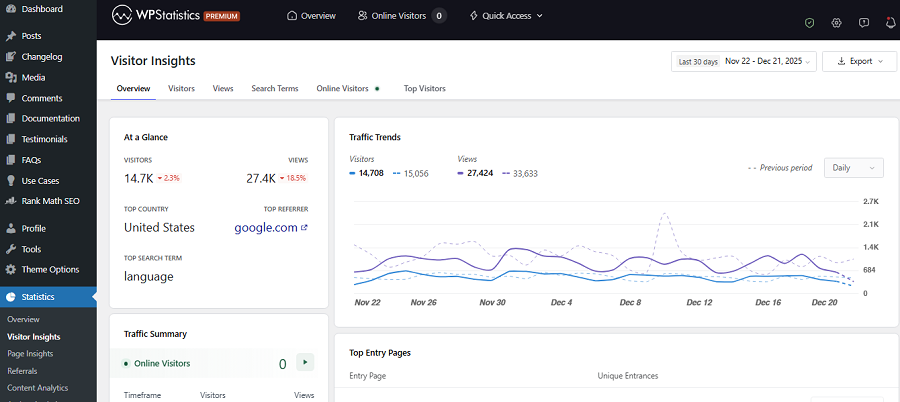
Here is a table of the most important metrics you can check when tracking anonymous visitor behavior on your site:
| Metric | Description |
| Visits & Visitors | Total visits and unique visitors. |
| Page Views | Number of times each page or post is viewed. |
| Referrers | Where your traffic comes from. |
| Search Queries | Keywords visitors used to find your site. |
| Browsers & Devices | Browsers, operating systems, and devices that visitors use. |
| Geolocation | Visitors’ countries, regions, and cities. |
| Top Pages / Posts | Most viewed content. |
Here is also the list of details WP Statistics gives you about logged-in users:
- Last View
- Visitor Information
- Referrer
- Entry Page
- Exit Page
- Total Views
Legal Considerations for Tracking User Activities
As tracking tools get more advanced, concerns over privacy issues increase. You have to make sure that your tracking strategy is compliant with regulations to avoid legal problems.
Here are what to consider when setting up your user activity tracking platform on your WordPress website:
Stay Transparent
You must inform users that you’re tracking data on your website. It’s essential to have a clear privacy policy page on your website that explains your tracking policy.
On this page, you have to let them know what you collect, how you use it, and who can access it. Remember that transparency builds trust and improves your brand reputation.
Use Cookie Consent
If you’re using cookies for tracking user activity, you’ll need a cookie consent banner on your site. It lets users accept your cookies or choose what to track or not. Fortunately, WP Statistics can integrate well with cookie banner plugins.
Of course, the tool is GDPR-compliant by default, so you don’t need a banner. However, if you disable anonymization, you might need a banner.
Anonymize and Minimize Data
It’s good to minimize the amount of data you collect and store from users. Try to anonymize IP addresses and avoid collecting unnecessary personal details. WP Statistics offers options to minimize this data, which helps you stay compliant.
Understand User Rights
Data protection laws like GDPR grant users the right to access, delete, or correct their data. So, if you’re running a business, make sure that you’re complying with local and international regulations. Try to show respect for your audience’s right to own their data. Otherwise, you might face legal fines.
Conclusion
If you want to become a niche thought leader, you must recognize your audience and track their behavior to customize your content accordingly.
Tracking logged-in user activity along with analyzing traffic lets you laser-target your niche audience and optimize your website so that your engaged visitors like the most.
Tools like WP Statistics allow you to track useful metrics to understand what appeals to your registered users.
Of course, you have to be careful about privacy issues when tracking user activity. It’s good to use a privacy-friendly tool like WP Statistics that is compliant with regulations and minimizes data collection without sacrificing accuracy.
Another benefit of using this tool is that you have it on your WordPress dashboard. So, don’t waste your time and install the plugin for free.
FAQs
How to track user activity in WordPress?
You can install a plugin like WP Statistics to track the behavior of your logged-in users and anonymous visitors on your website.
Can you track who visits a website?
If you want to stay compliant with data protection rules, you can’t track the personal details of visitors. However, it’s possible to track who visits your website.
How to add a visitor counter in WordPress?
You have several options. First, add a visitor counter plugin. Second, you can add an HTML code block to your page. Finally, it’s possible to install WP Statistics to count your site’s visitors.
How to check visitor stats on WordPress?
You can easily install a plugin like WP Statistics and check many metrics about your visitors’ behavior on your site.