
Almost all website owners use Google Analytics and Search Console for improving their site’s performance, especially in terms of SEO.
However, there are some alternatives that offer their capabilities in a much simpler user interface available on your site’s dashboard.
You can use analytics plugins to improve WordPress SEO without switching your dashboard.
In this blog post, we’ll introduce the best web analytics plugins for WordPress to help you track your site’s performance.
How Analytics Plugins Improve WordPress SEO
Here are the main reasons analytics plugins are a better choice than third-party tools for improving WordPress SEO.
1. SEO Insights inside WordPress
Using analytics plugins, you can access SEO data within your dashboard where you write and optimize content.
This integration reduces friction in switching tabs or exporting reports. You can track and analyze traffic, engagement, and landing pages, and instantly edit posts, internal links, or metadata.
So, analytics plugins help you make faster, more consistent SEO optimization decisions.
2. Integrating Key SEO and Marketing Metrics
Third-party tools usually don’t integrate SEO and marketing campaigns’ data. For example, Google Search Console offers page-level SEO tracking features while GA4 focuses more on campaigns and events.
On the other hand, analytics plugins gather the most useful metrics for both purposes. This is really useful for small and mid-size businesses that want to focus on key metrics instead of tracking all events.
3. User Experience Signals
User experience is now a key ranking factor, so you have to consider it when analyzing your website.
Advanced analytics plugins are designed with a focus on behavioral and UX-related metrics. Here are some common UX signals you can track using analytics plugins:
- Entry and exit pages
- Time on page
- Scroll depth
- Navigation paths
The thing is that third-party analytics tools don’t offer these metrics in their default settings, and you need to create custom reports. So, this helps you analyze and improve your site’s layout design, content, and navigation without complex setup.
4. Data Ownership and Privacy Control
This might be the most significant difference between third-party tools and analytics plugins. Many analytics plugins store data locally on WordPress.
This gives you ownership of website analytics for SEO. Also, they don’t share data with other platforms for targeted marketing and cross-website tracking.
This is becoming so important as privacy concerns are growing and data protection regulations are becoming stricter.
So, if you want an SEO analytics platform without violating users’ privacy, you’d better go for privacy-focused analytics plugins on WordPress.
Best WordPress Analytics Plugins for Search Optimization
Here are the best web analytics plugins you can install on your WordPress dashboard to track the SEO performance of your site:
1. WP Statistics
WP Statistics is a powerful web analytics plugin for WordPress sites and one of the best privacy-focused alternatives to GA4.
It stores data locally and doesn’t share it with third-party platforms for monetization. WP Statistics is cookie-free by default, but it allows you to enable cookies if needed.
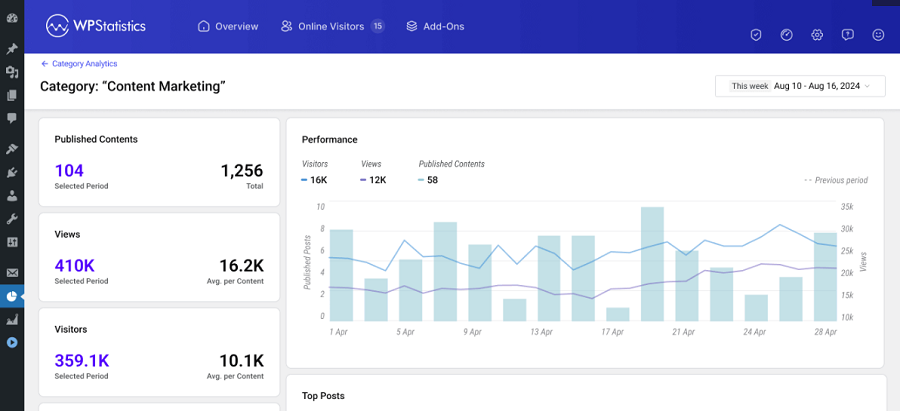
WP Statistics offers SEO-centric insights, including:
- Page-level traffic tracking
- Search engine referrer stats
- Top queries (Integration with Google Search Console)
- Internal search terms
- Location analytics
- Device and browser reports
- Author analytics
- Content analytics
Overall, it’s the most complete WordPress analytics plugin for improving SEO. You can use many of its features for free, but for more advanced tracking capabilities, you need to go premium.
Pricing Plans of WP Statistics
| Plan Type | Price | Add-Ons | Details |
| Free | $0 | Limited | Core analytics |
| Premium | ~$119/year | Yes | All add-ons for 1 site |
| ~$249/year | All add-ons for 5 sites | ||
| ~$449/year | Unlimited |
Pros of WP Statistics
- No external tracking service
- Privacy-friendly
- SEO-focused reports
- Lightweight
- Google Search Console Integration
Cons of WP Statistics
- Fewer advanced funnels
- Basic visualization
2. MonsterInsights
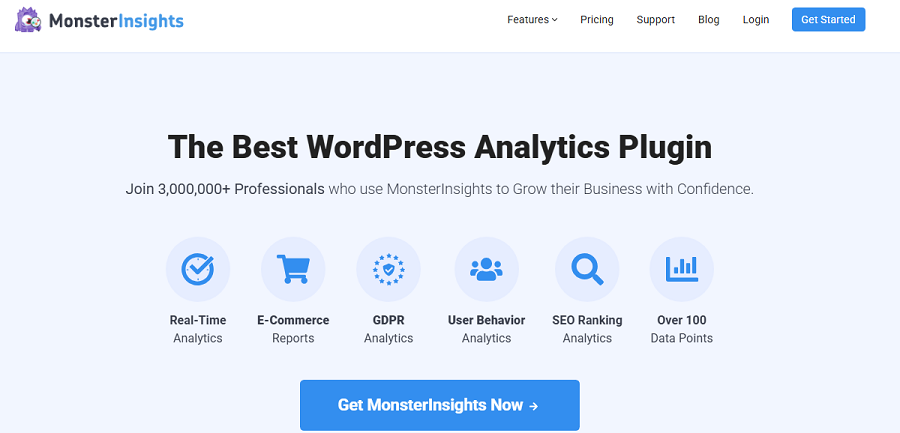
MonsterInsights connects WordPress to Google Analytics and offers many features in a beginner-friendly interface.
This is great for marketers who want SEO and campaign insights without technical setup. Content creators can also benefit from this plugin because they don’t need to switch to another platform for analytics.
Take a look at MonsterInsights’ features to see why it’s so popular:
- GA4 integration
- Search Console data
- Page-level analytics
- Event tracking
- Affiliate link tracking
- Dashboard reports
Pricing Plans of MonsterInsights
| Plan | Price | Sites | Add-Ons |
| Lite | $0 | 1 | No |
| Plus | ~$99/year | 1 | Limited |
| Pro | ~$199/year | 5 | Full |
| Elite | ~$299/year | 5 | Full |
Pros of MonsterInsights
- Easy setup
- Clean UI
- Strong integrations
Cons of MonsterInsights
- Depends on external analytics
- Less control over raw data
3. ExactMetrics
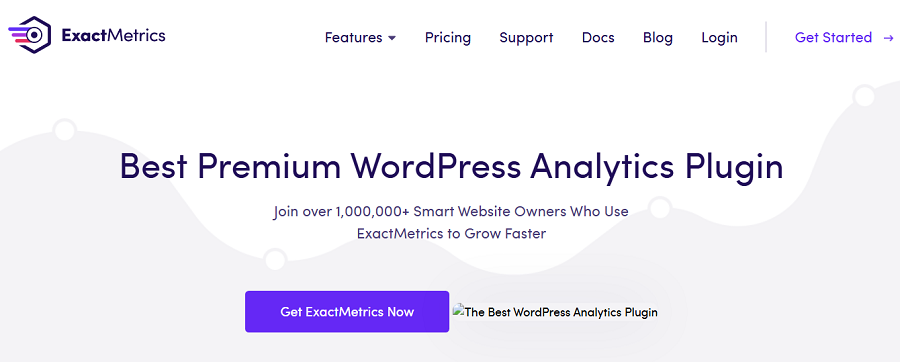
ExactMetrics provides actionable insights for improving your site’s SEO performance. It’s really useful for publishers and businesses that want to target engagement metrics.
Here are some of the features ExactMetrics offers:
- Enhanced link attribution
- Scroll depth tracking
- Custom dimensions
- Author and category reports
- Ecommerce analytics
Pricing Plans of ExactMetrics
| Plan | Price | Sites | Features |
| Lite | $0 | 1 | Basic |
| Plus | ~$99/year | 1 | Engagement |
| Pro | ~$199/year | 5 | Full |
Pros of ExactMetrics
- Strong UX data
- SEO-relevant reports
- Publisher-friendly
Cons of ExactMetrics
- Requires a GA connection
- Paid features locked
4. Matomo

Matomo is a well-known analytics platform that offers enterprise-level insights. Matomo for WordPress offers its features directly on your website without having to switch to the WordPress dashboard.
It’s one of the best GA4 alternatives and a great privacy-first analytics tool that is ideal for businesses that need compliance and advanced analytics.
Here are some of its features:
- Self-hosted analytics
- Heatmaps and sessions
- Conversion tracking
- Custom reports
- GDPR compliance tools
Pricing Plans of Matomo
| Version | Price | Hosting | Add-Ons |
| Free | $0 | Self | No |
| Cloud | ~$23/month | External | Yes |
| On-Prem Add-Ons | ~$39+/year | Self | Optional |
Pros of Matomo
- Full data ownership
- Advanced analytics
- Strong compliance
Cons of Matomo
- Heavier setup
- Resource intensive
5. Jetpack Stats

Jetpack Stats is the most lightweight web analytics plugin for WordPress websites. It offers simple traffic insights for basic SEO awareness. This is great for small blogs and beginners who don’t want a complex setup and a crowded analytics dashboard.
Look at its features to see if it’s suitable for your business:
- Real-time stats
- Page and referrer data
- Search engine insights
- Minimal setup
Pricing Plans of Jetpack Stats
| Plan | Price | Stats Access | Extras |
| Free | $0 | Basic | Limited |
| Paid | ~$10/month | Advanced | Security |
Pros of Jetpack Stats
- Very easy setup
- Lightweight
Cons of Jetpack Stats
- Limited SEO depth
- Minimal customization
Here is a quick comparison between WordPress analytics plugins:
| Plugin | Data Storage | SEO Reports | Privacy | Ease | Best Use |
| WP Statistics | Local | Yes | High | Medium | SEO tracking |
| MonsterInsights | External | Yes | Medium | High | Marketing |
| ExactMetrics | External | Yes | Medium | High | Publishing |
| Matomo | Local/Cloud | Yes | Very High | Low | Enterprise |
| Jetpack Stats | External | Limited | Medium | Very High | Beginners |
Whether you have a blog or a WooCommerce website, you can count on WP Statistics for improving your SEO performance.
How to Use WP Statistics to Improve Your Site’s SEO
Working with WP Statistics is much easier than GA4. Here’s a step-by-step guide to start and use it to improve your website’s SEO:
Step 1: Install and Set Up the Plugin
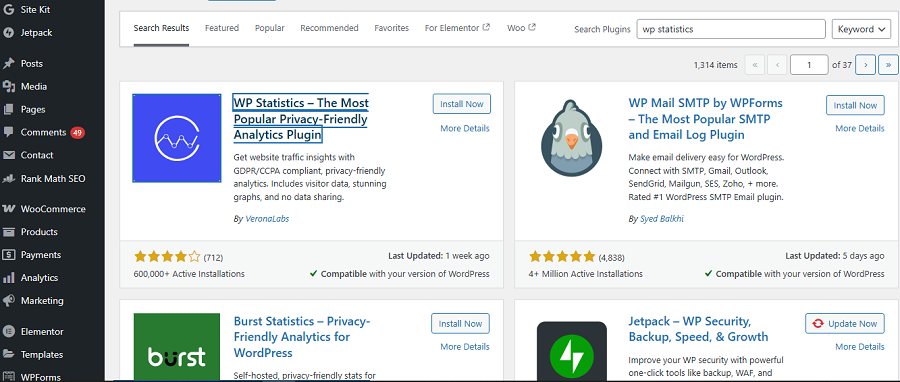
Go to your WordPress dashboard and click Plugins in the left-side menu. Then, tap Add Plugin, and write WP Statistics in the search bar to find the plugin.
Now, click Install and then Activate. This takes less than a minute. After that, you can see Statistics in the left-side menu.
Open it for more configurations and customizations, including:
- Custom Reporting & Views
- Data Filtering
- Tracking Capabilities
- Functionality Enhancements
- Privacy & GDPR
Step 2: Analyze Traffic Data
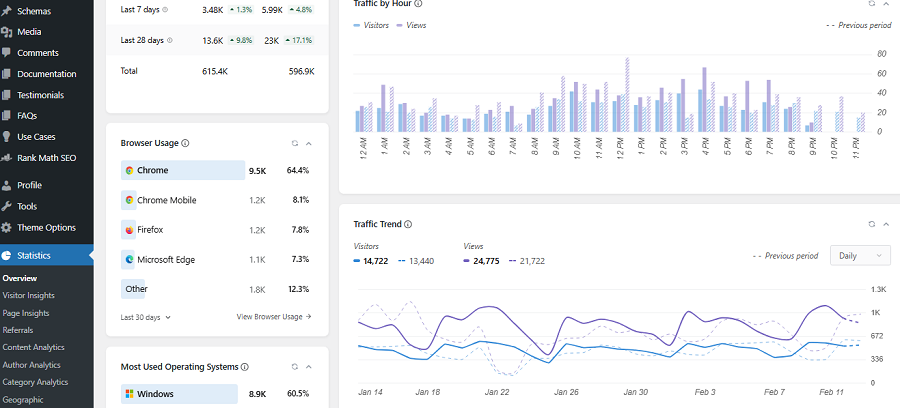
Click Statistics and then choose Overview to see a summary of traffic history in different timeframes, like daily, weekly, and monthly.
Key metrics that you should focus on in this step are:
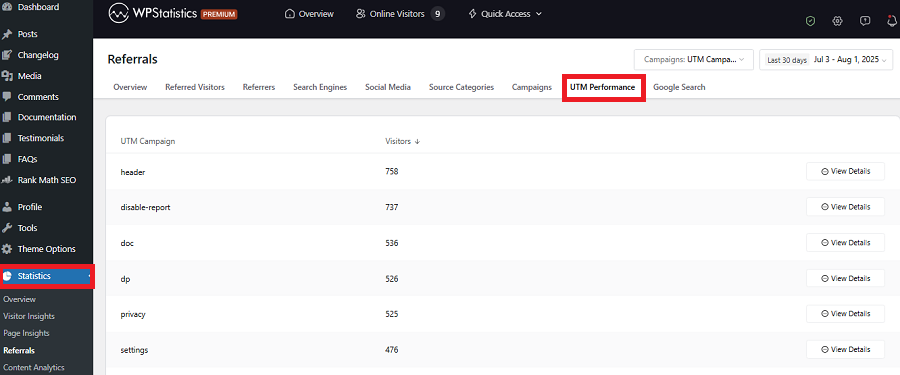
- Referral Sources: Find the source that brings more traffic to your site, including organic search and social media.
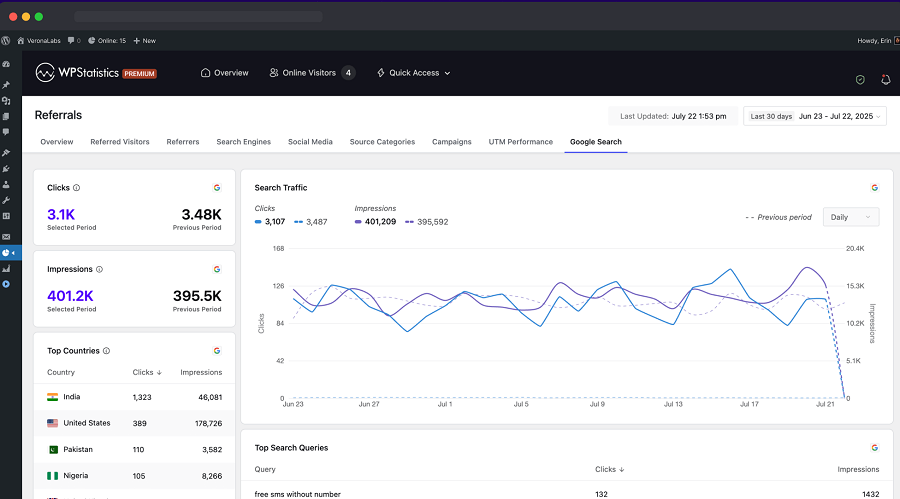
- Top Queries: WP Statistics integrates well with Google Search Console and lets you monitor the keywords users have searched to find your site.
- Long-Term Trend: You have to look for long-term changes in traffic, not just spikes or drops.
Step 3: Analyze Content Performance
Now, you have to take a closer look at your content and page performance. Click Content Analytics, Page Analytics, and Author Analytics under Statistics to analyze important metrics like:
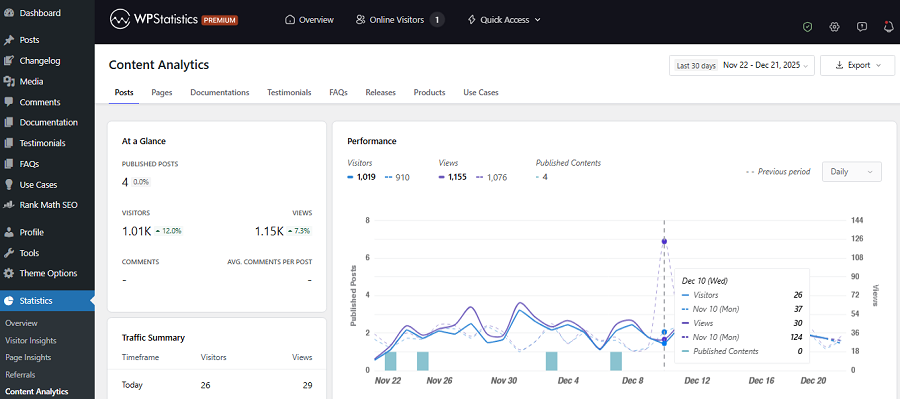
- Page-Level Traffic: Views, engagement, and historical trends of top pages. Try to find the worst-performing pages to optimize them.
- Author Analytics: WP Statistics ranks authors by views, published content, and comments to refine your strategy in the future.
- Entry/Exit Pages: Find the pages that visitors have used to find their way to your website. Also, you have to list exit pages to understand what pages/contents make your visitors leave the site.
Step 4: Monitor User Behavior and UX Signals
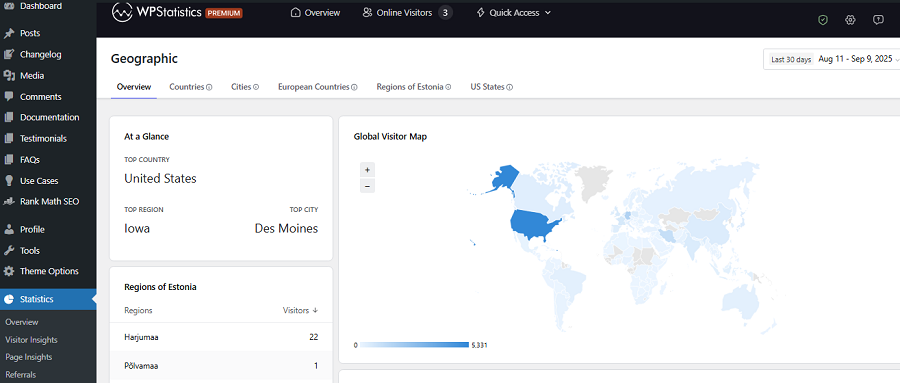
Try to recognize your audience by tracking their behavior. Here are some key metrics WP Statistics offers to help you monitor user behavior:
- Location Analytics: If you understand where your visitors are located, you can adjust your content to improve local SEO.
- Device and Browser Reports: Figure out what devices they use, because you can focus better on UX design. WP Statistics breaks down traffic by OS, browser, and device type (desktop, mobile, tablet).
- Link and Download Tracking: WP Statistics can track clicks on outbound links or file downloads. So, you can see what visitors like and what they ignore.
- Internal Search Terms: Apart from top queries, you can see what items your visitors have searched on your site. This adds more data about how they think and what they are looking for.
Step 5: Set Goals and Track Campaigns
You can build campaign links, monitor performance, and measure conversions to understand what’s working and what’s not.
Final Thoughts
You can use analytics plugins to improve WordPress SEO instead of relying on Google Analytics and Search Console.
Plugins like WP Statistics offer great SEO features at an affordable cost through a user-friendly dashboard.
The good is that these tools are privacy-focused, which means they don’t use cookies or other invasive tracking methods.
Also, they don’t share your data with other platforms for monetization.
You can rely on their results’ accuracy and build your SEO strategies accordingly.
So, why wait? Install a web analytics plugin and try its features to see if it works for your website.
FAQs
Which plugins help with SEO on WordPress?
Plugins like WP Statistics and ExactMetrics can track the SEO performance of your WordPress site and optimize it.
What is the best analytics plugin for WordPress?
WP Statistics is a complete analytics plugin for WordPress. You can use it as an alternative while staying compliant.
How to improve your SEO on WordPress?
You have to install a web analytics plugin like WP Statistics and track the performance of your site. Then, try to find the weaknesses and strengths of your site and optimize your SEO strategies.