
Do you track your blog performance?
You must make sure that your blog posts are performing well in SERPs. Otherwise, you might waste time and money writing and publishing posts without improving your website and your business.
That’s why you need to track your blog posts’ performance to find strengths and weaknesses and optimize your content strategy accordingly.
To do that, you need to choose an effective web analytics tool and track important metrics that show the performance of a blog post.
In this article, we’ll help you get familiar with the best tools to track blog post performance on WordPress.
Best Tools to Track Blog Post Performance on WordPress
First, let’s review the best WordPress blog post analytics tools:
1. WP Statistics
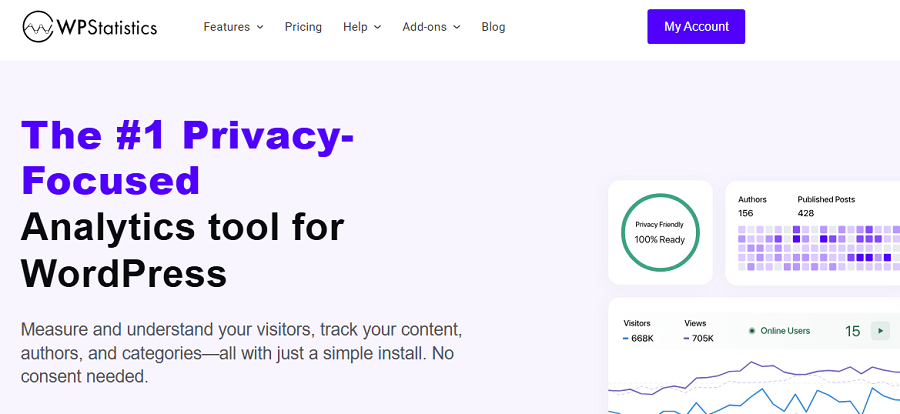
WP Statistics is a WordPress plugin that lets you monitor your website’s performance without switching your WordPress dashboard.
It offers free tracking features for a vast variety of WordPress post performance metrics, like:
- Page views and unique visitors
- Traffic sources and referrer sites
- Search engine keywords
- Visitor locations and devices
- Most viewed posts and pages
- Real-time visitor activity
WP Statistics also offers add-ons for monitoring more advanced factors, like the details of marketing campaigns.
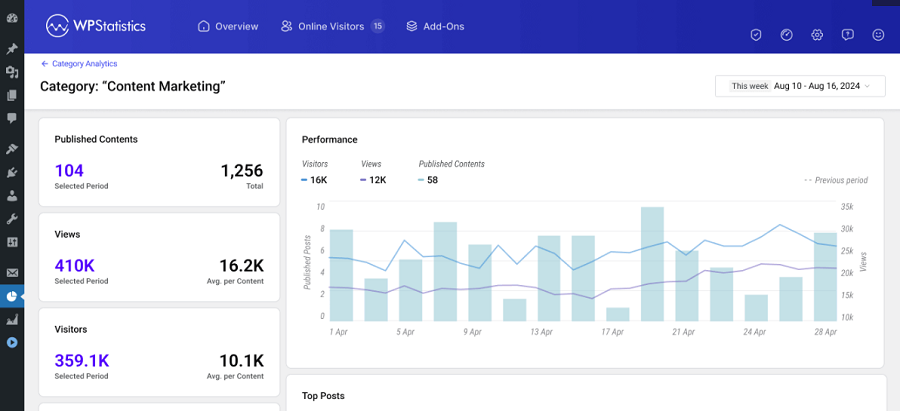
Moreover, WP Statistics is a privacy-focused platform that avoids sharing and selling your visitors’ data. So, if you want to keep data local and comply with GDPR regulations, WP Statistics is one of your best choices.
2. Google Analytics 4 (GA4)
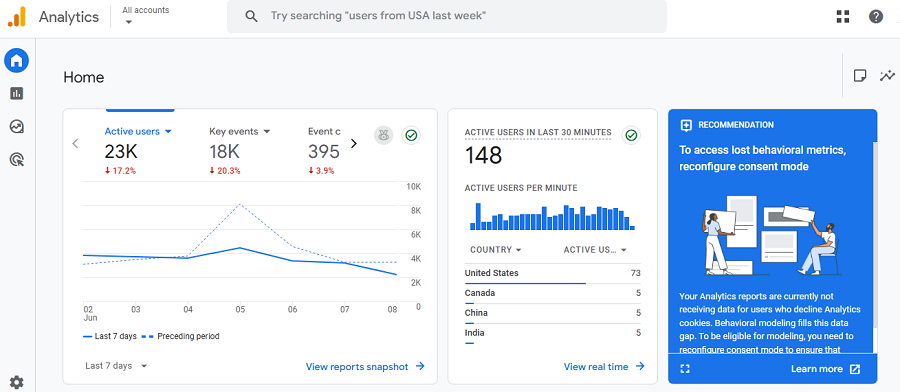
GA4 is Google’s newest version of its analytics platform, which is more user-friendly compared to previous versions.
It offers a complex, event-driven web analytics platform that lets you monitor a wide range of metrics to analyze your blog post performance.
GA4 focuses on user engagement rather than just content views. It allows you to track scroll depth, video plays, outbound clicks, and conversions. However, it does not provide direct insights into ranking keywords or author performance.
For these metrics, you need to use other platforms like Google Search Console or define customized reports on GA4.
3. Jetpack Site Stats

If you’re looking for a lightweight tool to track your blog posts, Jetpack Site Stats is your best choice.
Jetpack is also a plugin on WordPress that offers built-in stats as an all-in-one suite. It’s one of the easiest ways to track basic metrics, like:
- Daily views
- Top posts
- Referrers
It doesn’t provide as many analytics features as Google Analytics or WP Statistics. However, Jetpack’s simplicity is its strength, which is perfect for bloggers and small business owners.
4. Matomo Analytics

Matomo is an open-source analytics platform with powerful blog post tracking capabilities. If you’re looking for something more than standard metrics, like page views and referrers, Matomo is a good choice for your blog.
It provides advanced insights such as heatmaps, session recordings, and conversion funnels. So, you have a clear understanding of your visitors’ interactions with your blog posts.
The good news is that this web analytics tool doesn’t rely on third-party data storage.
This feature has made Matomo the first choice of organizations and businesses that don’t want to share their visitors’ data with other parties.
The only drawback is that it needs more technical expertise than typical WordPress plugins. However, this is not something important for large organizations and business owners.
5. ExactMetrics
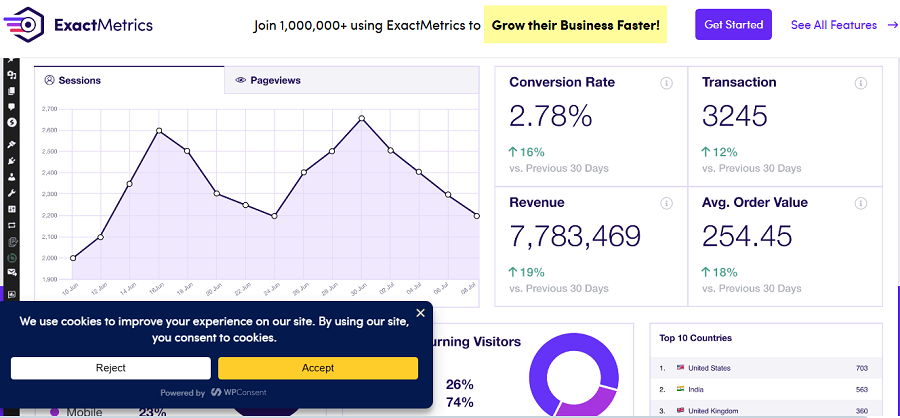
ExactMetrics is a WordPress plugin that lets you use GA4’s features directly on your dashboard. It connects to your GA4 property and converts your blog post data into easy-to-read reports.
It allows you to track user engagement, affiliate link clicks, eCommerce conversions, and top-performing posts.
ExactMetrics is especially useful for content marketers and online store owners. If you need a WordPress plugin to track blog post performance with a quick overview of traffic, it’s a good choice.
Now, it’s good to compare all the tools to find the best web analytics to track the performance of your blog posts:
| Tool | Integration | Ease | Features | Best For | Advantage |
| WP Statistics | WordPress plugin | Easy | Local data, traffic, top quesries | Bloggers, marketers, content teams | GDPR-safe, self-hosted, full data control |
| GA4 | External (Google) | Difficult | Events, conversions, engagement | Marketers | Deep insights, cross-platform |
| Jetpack Stats | WordPress plugin | Very easy | Views, referrers, top posts | Beginners | Quick setup, dashboard view |
| Matomo | Self-hosted | Difficult | Real-time, heatmaps, privacy | Businesses | Full data control |
| ExactMetrics | GA4 plugin | Easy | Engagement, eCommerce, links | eCommerce sites | Marketing-focused reports |
Metrics to Analyze a WordPress Blog Post
Now, it’s time to learn what metrics show the performance of your blog posts:
Page Views
This is one of the most important metrics for analyzing a blog post. Page views measure how many times your blog post has been loaded.
It lets you understand what type of content is attracting your audience. If your post is receiving a lot of page views, you can consider its topic and style of writing in your future plans. Otherwise, you have to find the problem with your content.
Average Engagement Time
This metric shows how long your visitors actively interact with your post. This means that they should scroll, click, or read the blog post rather than just opening it.
A high engagement time shows that your content is really useful for your visitors and makes them interact.
Bounce Rate
Bounce rate measures the percentage of visitors who left your site after viewing just one page.
Remember that this is not necessarily bad because they might have found the correct answer to their questions, which means you’ve written the blog post efficiently.
Of course, if your readers consistently exit without any interaction, you might have to work on your internal linking, content structure, or calls-to-action.
Traffic Sources
One of the most important duties you and your SEO team have is to check where your audience comes from and what is the traffic source. You need to categorize the sources, like:
- Search engines
- Social media
- Referrals
- Direct visits
This helps you understand how you have to reach out to your niche audience to get better results.
For example, if you’re receiving your traffic from Google more than other channels, you can invest more in SEO to rank for more keywords.
Author Performance
Remember that content is king and authors are the keys to generating informative, optimized content.
Although you can use content tools like Surfer SEO to optimise your content, you can’t ignore the capabilities of your content writers.
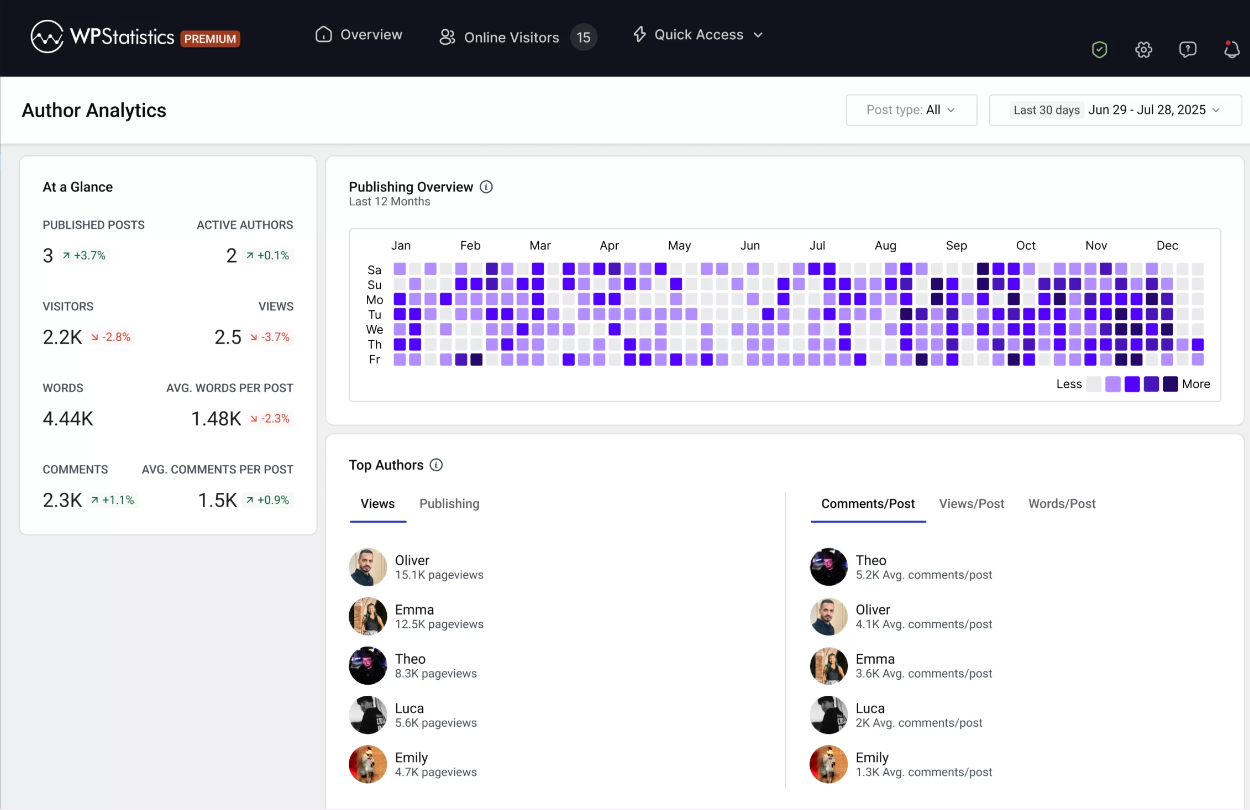
So, if you have several contributors for your blog, it’s good to track their performance. You can compare their performance by listing the best-performing blog posts or even use tools like WP Statistics to find authors with higher views per post.
Keyword Performance
The main goal of publishing blog posts is to rank for important keywords and attract internet users.
If you want to track your blog post performance, you have to see what keywords it can rank for in SERPs.
Keyword tracking shows the search queries that bring visitors to your blog posts. This helps you optimize your content strategies or even update the previously published blog posts to improve their ranks.
Social Shares & Referrals
Social shares and backlinks show how much your content has attracted attention in your community.
It’s good to write blog posts to which websites or social platforms in your industry link. This way, you improve your business authority and build an online brand identity.
Use WP Statistics to Analyze a Blog Post
Here is how you can analyze your blog post using WP Statistics:
Step 1: Install the Plugin
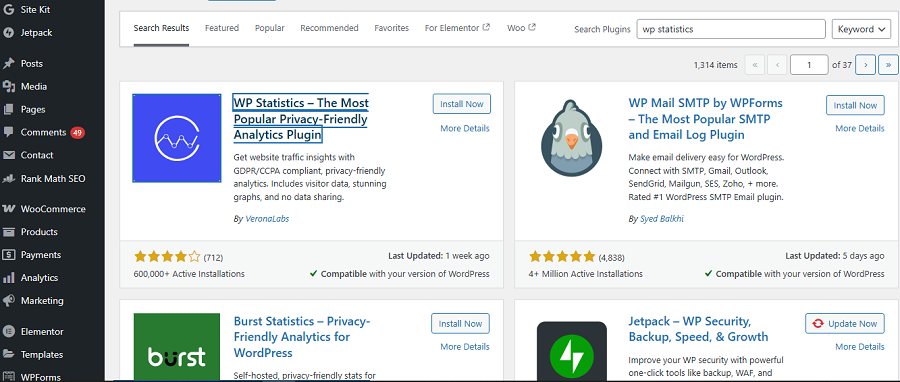
Go to your WordPress dashboard and click “Plugins” in the left side menu. Then, choose “Add Plugin” and search for WP Statistics.
Click “Install,” and after installation, “Activate” the plugin. Now, you’re all set!
Step 2: Configure the Plugin
Go to Settings to initialize some important factors. First, confirm your time zone so that it aligns your data with local audiences. Then, filter logged-in users (like you) to avoid tracking internal visits.
Also, review options for GDPR compliance. You can enable IP anonymization and cookie-free tracking if needed, but remember that in that case, you need cookie banners.
Step 3: Understand the Dashboard
WP Statistics offers a simple dashboard to help you track your blog post performance easily.
The main sections of WP Statistics’ dashboard are:
- Overview
- Visitor Insights
- Page Insights
- Referrals
- Content Analytics
- Author Analytics
- Category Analytics
- Geographic
- Devices
The good news is that you can use many of these features for free. Also, you can go for the premium version of WP Statistics and use more advanced features like:
- Goals
- Link Tracker
- Download Tracker
Step 4: Take a Look at the Summary
Go to the Statistics on your dashboard and click “Overview.” Here, you can see the overall performance of your website, including Traffic Summary, Weekly Performance, Referrals, and Top Pages.
It should be noted that the extensive reports of these metrics are in other sections of the plugin.
Step 5: Track Your Visitors
To find detailed information about your visitors, click “Visitor Insights” in the menu. Here, you can see Visitors, Views, Online Visitors, and Top Visitors.
In this section, you can track the behavior of visitors. For example, you can see their Entry/Exit pages to see if they have visited other pages or have left your site without interaction. This helps you calculate the bounce rate per blog post on WordPress.
Step 6: Track Search Queries
It’s essential to see which keywords your visitors have used the most to find your blog posts. You can go to Statistics > Referrals > Top Search Queries to see a list of queries that visitors have searched to find your blog posts. Here you can also see clicks and impressions of each keyword to understand the interaction of visitors after finding your site in SERPs.
This section of WP Statistics is powered by Google Search Console and is a great way for blog post SEO performance tracking on WordPress.
Step 7: Track Location
Go to Statistics > Geographic to see a segmented report according to the location of your visitors in different sections, like:
- Countries
- Cities
- European Countries
- Regions of Your Country
- US States
WP Statistics displays your location-based traffic on a map to let you know where your visitors come from.
Use GA4 to Track the Performance of a Blog Post
Now, let’s see how you can track your blog post performance using Google Analytics. Here is a step-by-step guide:
- Step 1: Create a Google Analytics 4 property in your Google Analytics account.
- Step 2: Copy your GA4 Measurement ID from the Admin → Data Streams section.
- Step 3: Install Site Kit by Google on your WordPress website.
- Step 4: Connect your WordPress site to your GA4 property using the plugin and the ID.
- Step 5: Open GA4 and go to Home and watch the summary of your blog performance, including views and active users.
- Step 6: Go to Reports → Engagement → Pages and screens to view performance by page.
- Step 7: Analyze key metrics such as average engagement time, engaged sessions, and conversions.
- Step 8: Use custom Exploration reports to compare posts, traffic sources, and user behaviors.
Final Thoughts
Thanks to web analytics tools like WP Statistics, you can now easily use the WordPress dashboard for post performance analytics. You just need to install a plugin to have all the required reports on your blog post performance without switching your WordPress dashboard.
The good news is that WP Statistics is privacy-focused, which means it’s GDPR-compliant by default. Also, it shows some details like author analytics and single-page insights compared to Google Analytics.
So, if you want to get rid of the complexity of GA4 and use a simple dashboard for blog post analysis, you can count on WP Statistics.
FAQs
How to check blog traffic on WordPress?
You can check traffic using built-in tools like Jetpack Site Stats or by connecting Google Analytics 4 (GA4) for detailed insights into visitors, views, and engagement.
Do nearly 75% of all websites use WordPress?
No! WordPress is used by more than 40% of all websites and over 60% of sites that use a CMS. So, it’s the world’s most popular content platform.
How to manage blog posts in WordPress?
Go to your Dashboard → Posts → All Posts to edit, delete, or organize existing articles, or click Add New to publish fresh content.
How to check post views on WordPress?
Install a plugin like Jetpack or WP Statistics. Both tools display post view counts directly on your dashboard for easy tracking.