

If you want to keep your website’s rank in SERPs and improve your organic views, you need to keep it updated.
Table of Contents
No matter what your industry is, you have to cover the latest news, trends, and tools to answer what users, especially Gen Z, want.
Without a content update, you’ll lose the market to your competitors even if your products/services are better than theirs.
The thing is, many site owners update their content regularly, but they are not sure if their changes are effective.
If you’re one of them, you’d better read this blog post. We’ll explain why you need content update tracking on your site and how to analyze it.
Why You Should Update Your WordPress Content
Here are the benefits of content updates on your WordPress website:
1. SEO Benefits
Search engines in 2026 are different from those in the past. They can now recognize the concepts, rather than just keywords.
Google, for example, is extremely good at identifying content that lacks depth, even if it’s written recently.
So, if you use tricks like changing the date or adding phrases like “Updated” to the title, you can’t reach success in SEO.
A real content update is something more than dates. You need to improve relevance, depth, data, links, and EEAT.
When you see that your previous content has lost its rank but the topic is still trendy, it’s good to update the content.
2. UX Benefits
Users recognize outdated content and will lose trust in your website. Broken screenshots, old statistics, and irrelevant examples will dent your brand’s popularity, so try to update your content regularly.
This will improve several important metrics, like:
- Time on page
- Scroll depth
- Return visits
- Brand credibility
So, if you audit your content, you can expect higher engagement rates.
3. Conversion Benefits
Sometimes you see a high traffic volume without much conversion. You can update CTAs and create clearer copy to make the content aligned with user intent.
This will significantly improve conversion rates, especially on evergreen blog topics and landing pages.
4. Authority and Trust Signals
When you update content with the latest data, you’re in fact sending a strong trust signal to both users and search engines.
In 2026, E-E-A-T expectations are higher, and consistent updates reinforce expertise and experience.
Here is a summary of the benefits of updating your website content:
| Aspect | Before Update | After Update |
| Rankings | Declining or stagnant | Stabilized or improving |
| User engagement | Lower time on page | Higher interaction |
| Conversion rate | Underperforming | Optimized for intent |
| Crawl frequency | Infrequent | More consistent |
| Perceived trust | Dated | Current and credible |
The Best Tools for Content Update Tracking on WordPress
Here are the best tools that let you track content update results on your WordPress website:
1. WP Statistics
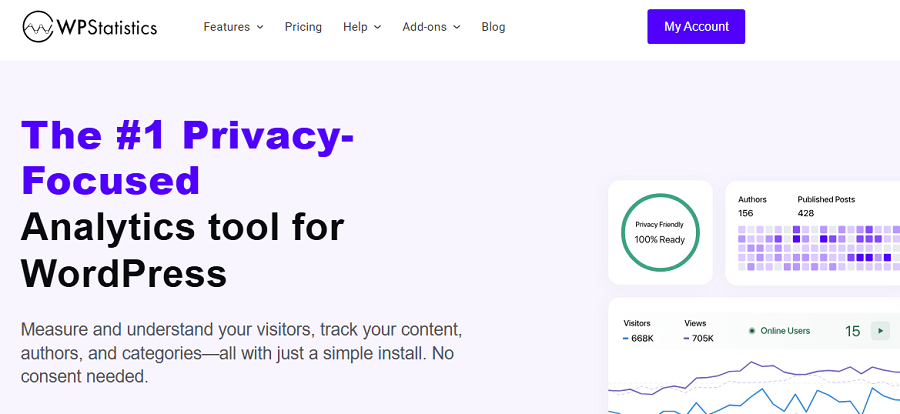
WP Statistics is a web analytics plugin for WordPress websites. It offers a lightweight, open-source platform that lets you track many useful metrics, like views, visitors, referrers, and search engine data.
Using WP Statistics, you can easily monitor changes in your site’s traffic to understand the effect of your content updates.
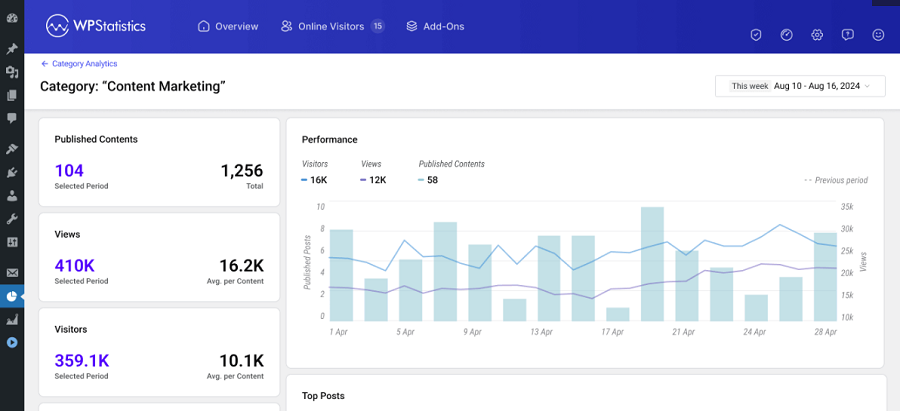
The good news is that it tracks your site’s performance without using cookies and other invasive tracking methods.
WP Statistics is a privacy-focused analytics tool and doesn’t share your data with third-party platforms.
Even with its free version, you can track important content-related data on your WordPress site. For more advanced features, you can go for premium plans according to your needs.
| Plan | Price | Key Features | Best For | |
| Free | $0 | Page views, visitors, referrals | Small blogs | |
| Pro Add-ons | 1 Site | $119/year | Data Plus, Marketing, Real-Time Stats | Mid to large businesses |
| 5 Sites | $249/year | |||
| Unlimited | $449/year | |||
2. Analytify
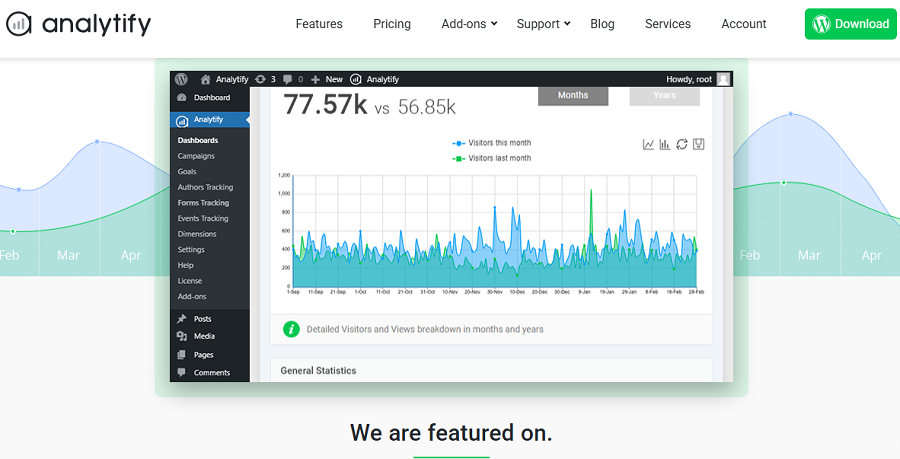
This is a useful WordPress plugin for integrating GA4 into your site’s dashboard. Analytify offers great features for content update tracking with reports on pages and posts.
It allows you to track metrics like views, average time on page, bounce rates, and new vs. returning visitors for each post on your site.
Using Analytify, you can easily measure your site’s performance before and after content updates.
Its basic plan is free, but for advanced add-ons, you need to pay. The premium version supports author tracking, UTM campaigns, and real-time stats that help you monitor changes with more details.
| Plan | Price | Key Features | Best For |
| Free | $0 | Basic GA4 dashboards, page-level stats | Small bloggers |
| Personal | $59/year | Advanced reports, post/page analytics, campaign tracking | Content-driven sites |
| Business | $199/year | Multi-site support, enhanced reports | Agencies, publishers |
3. Matomo

Matomo is a famous Google Analytics alternative. It’s a privacy-focused analytics tool that offers advanced tracking features for WordPress via its plugin.
You can track WordPress content updates using goal conversions, heatmaps, session recordings, and form analytics.
It also offers individual page views, user paths, and engagement to see how content updates affect traffic funnels and behavior.
Matomo is a GDPR-compliant platform and offers both self-hosted and cloud versions for data ownership.
| Plan | Price | Key Features | Best For |
| On-Premises | Free | Full analytics, data ownership, and GDPR compliance | Technical teams, regulated industries |
| Cloud Starter | ~$23/month | Hosting included, updates, support | Businesses that need simplicity |
| Add-ons | Varies | Heatmaps, session recording, form analytics | UX optimization |
4. ExactMetrics

ExactMetrics is another strong GA4 connector for WordPress websites. It offers great page insights directly on your site’s dashboard and allows you to perform quick checks on the performance of each post.
You can track updates using reports on user demographics, behavior flows, affiliate links, and form conversions.
| Plan | Price | Key Features | Best For |
| Free | $0 | Basic GA4 reports, dashboard stats | Beginner WordPress users |
| Plus | $99/year | Custom dimensions, page insights, form tracking | Content marketers |
| Pro | $199/year | eCommerce, advanced tracking | Monetized sites |
5. Site Kit by Google
This one is Google’s official plugin that gets data directly from GA4 and Search Console and displays it on your dashboard.
It’s one of the most trusted web analytics plugins for tracking content updates using search performance metrics, like impressions, CTR, top pages, and traffic trends.
Site Kit allows you to easily monitor how updates influence visibility and engagement without extra setup. The great news is that it’s completely free.
6. MonsterInsights

This is one of the most popular Google Analytics (GA4) plugins for WordPress.
MonsterInsights is great at tracking content updates using Site Notes, where you can annotate changes.
You can track the impact of your changes on traffic, rankings, and conversions, and optimize your future content audit accordingly.
It provides simple reports on different metrics, like individual post/page views, top-performing content, bounce rates, and traffic sources.
MonsterInsights also offers real-time tracking to help you find immediate effects from updates.
| Plan | Price | Key Features | Best For |
| Free | $0 | Basic traffic stats, top pages | Entry-level analytics |
| Plus | ~$99.50/year | Site Notes, post tracking, events | Content teams |
| Pro | ~$199.50/year | eCommerce, custom dimensions | Revenue-driven sites |
7. Crazy Egg
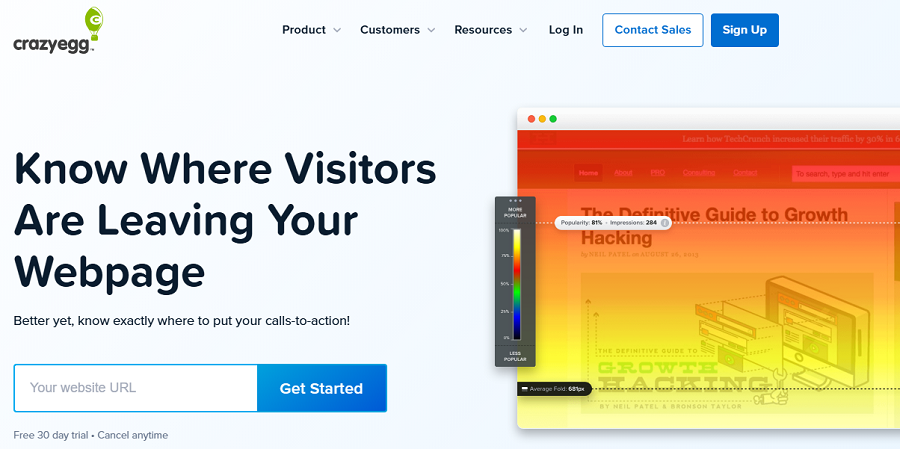
Crazy Egg is famous for visual analytics, like heatmaps, scroll maps, and session recordings. This tool shows how users interact with updated content, and lets you optimize user experience when changing your content. Also, it offers A/B testing to compare versions and find update impacts on engagement.
| Plan | Price | Key Features | Best For |
| Basic | $29/month | Heatmaps, scroll maps | UX testing |
| Standard | $49/month | Session recordings, snapshots | Conversion optimization |
| Plus | $99/month | A/B testing, advanced targeting | CRO teams |
Step-by-Step Guide to Analyzing Content Updates on Your Site
Now, we’ll explain how you can track and analyze your content updates on your website using WP Statistics.
Step 1: Install & Configure WP Statistics
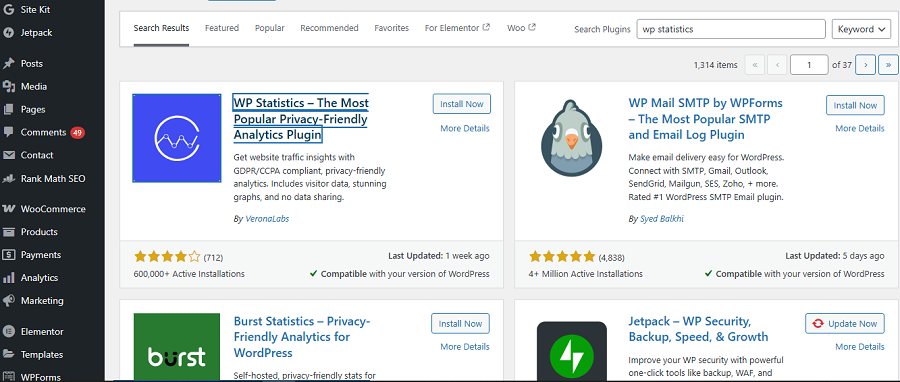
The installation process is really straightforward. Go to your WordPress dashboard. Then, click Plugins and choose Add Plugin.
Now, you’ll be redirected to the plugin page on WordPress. Find the address bar and enter “WP Statistics” to find it.
Click “Install” and finally activate the plugin.
Step 2: Customize the Plugin
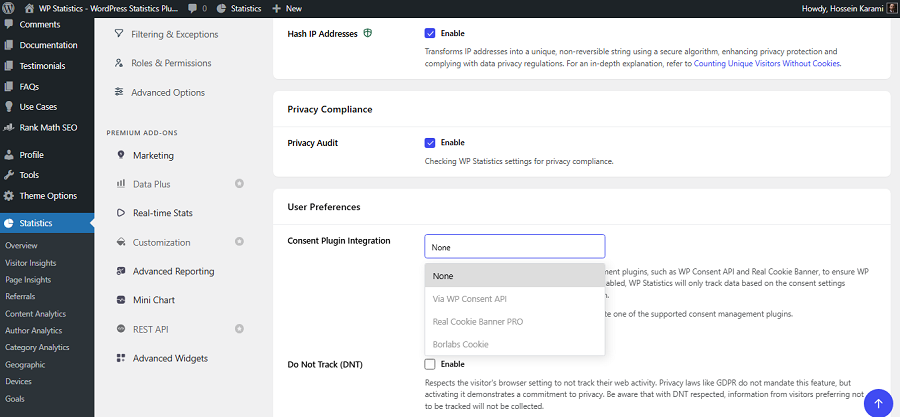
WP Statistics gives you lots of customizable options, including:
- Consent Banner Options: It’s cookie-less by default, but you can integrate it with consent banners to ensure full compliance.
- Exclusion: You can exclude admins users to have a more accurate result.
You just need to go to Settings under Statistics to make these changes in your plugin’s configuration.
Now, you’re all set and can track your site’s content updates.
Step 3: Track Traffic Change
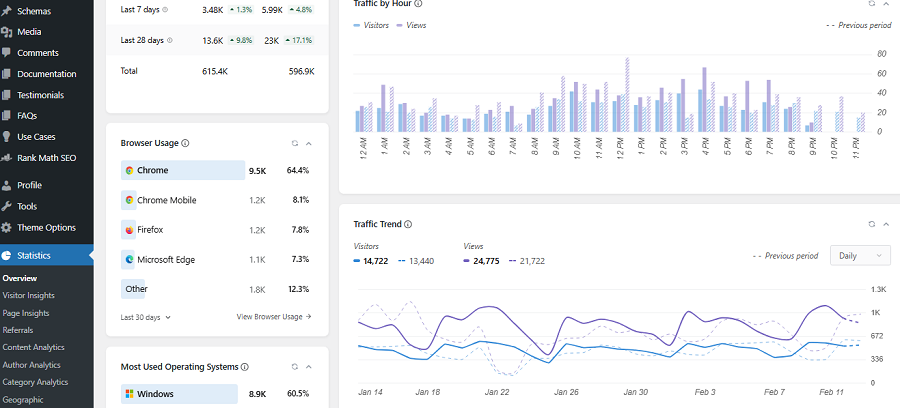
It’s important to know the traffic of your site and its changes after a content update. WP Statistics offers accurate analytics on your site’s traffic under Views.
Go to Statistics and click Overview. Here you can see a summary of your site’s performance in terms of Views in different time frames, like daily, weekly, and monthly.
This way, you can understand the impact of your content update on your site’s performance.
Step 4: Monitor the Number of Visitors
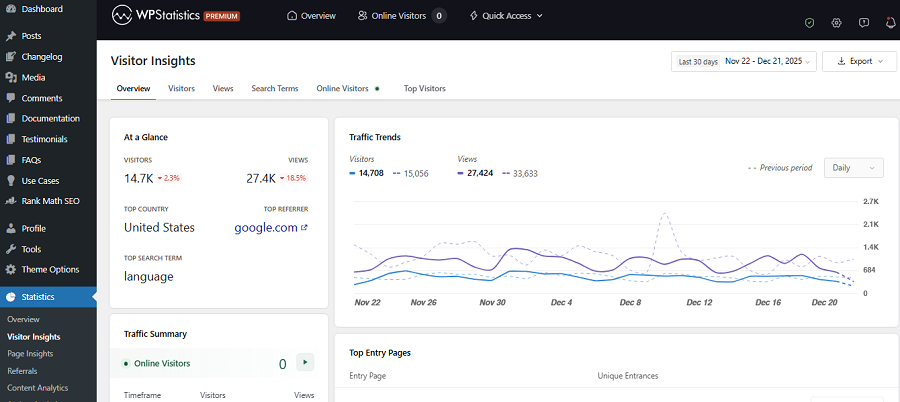
Apart from your site’s traffic, you have to know how many people have visited your site before and after the update.
WP Statistics gives you an insight into the number of daily/weekly/monthly visitors in the Overview section.
Also, it offers a complete section called Visitor Analytics to track the behavior of your users and their interactions with your site.
Step 5: Find the Best Channels
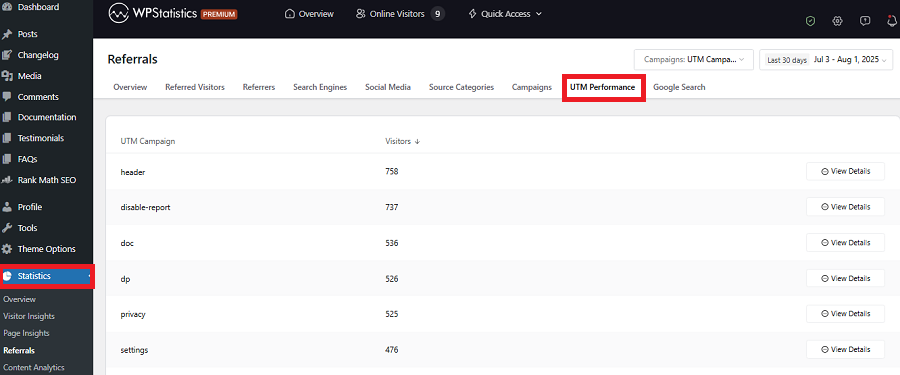
WP Statistics has a Referrers section that helps you recognize where your traffic is coming from.
It categorizes them into search engines, social media, or organic. This gives you an insight into the impact of your content change on each channel and the traffic they drive to your site.
Step 6: Track Location & Devices
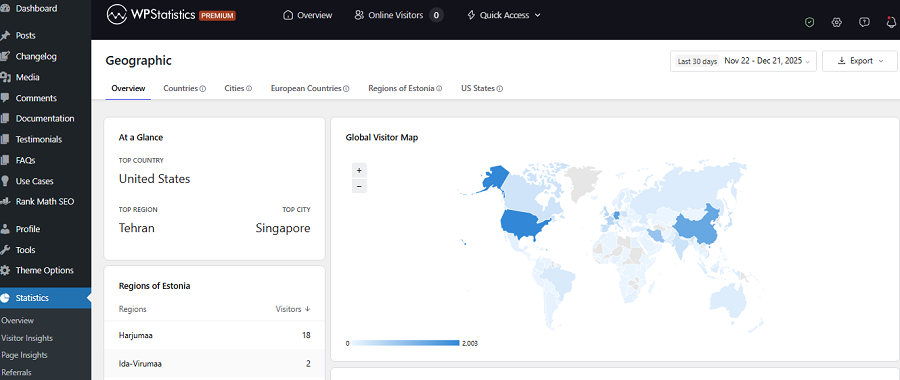
You have to know where your visitors live and what type of device they use to visit your site. This helps you optimize your content accordingly.
Go to Statistics and click “Geographics” and check if you have found visitors from new locations.
Also, go to “Devices” to see if your mobile visitors have increased. This shows if your updates are mobile-friendly or not.
Step 7: Find Improved Keywords
WP Statistics tracks search queries that visitors use to find your site and lists them under “Top Search Queries.”
Content updates help your site rank for new keywords, and this is what you have to track before and after the update.
To check that, go to Statistics and click Overview. Then, scroll down to find Top Search Queries and check if your content update has been successful.
Step 8: Track Author Performance
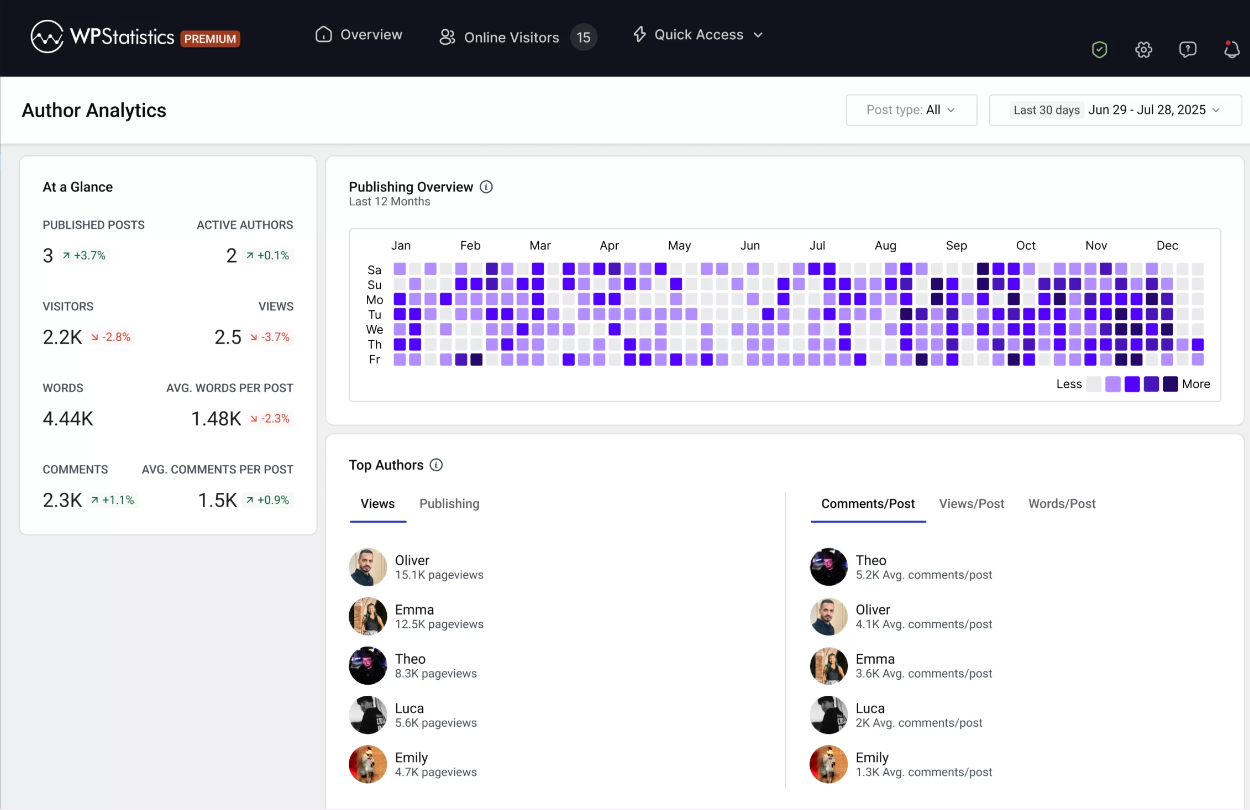
You can use WP Statistics to find the best authors according to the performance of the posts they have published. Try to give them a chance to improve their performance after a content update.
To check their performance, you just need to go to Statistics and click Author Analytics. Then, watch views and views/posts of authors and try to think of a way to improve the output of those authors whose content updates have not been successful.
Step 9: Track Page Insights
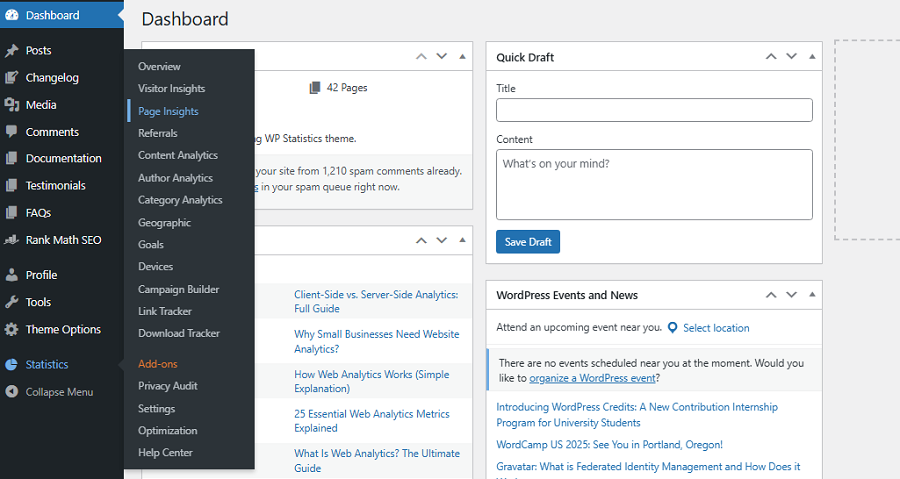
Using WP Statistics, you can perform single-page analysis to have a deep insight into the performance of each page after your content updates.
This feature is offered under the Data Plus add-on and is a unique capability among web analytics tools.
It also allows you to find what pages are mainly used by visitors to come to your website and what pages make them leave your site.
WP Statistics gives you useful insights into Entry and Exit Pages to help you find well-performing content updates.
To track the impact of your content updates on your entry and exit pages, go to Statistics and click “Page Insights.” Now, tap Entry Pages and Exit Pages to see the results.
Step 10: Review Content Analytics
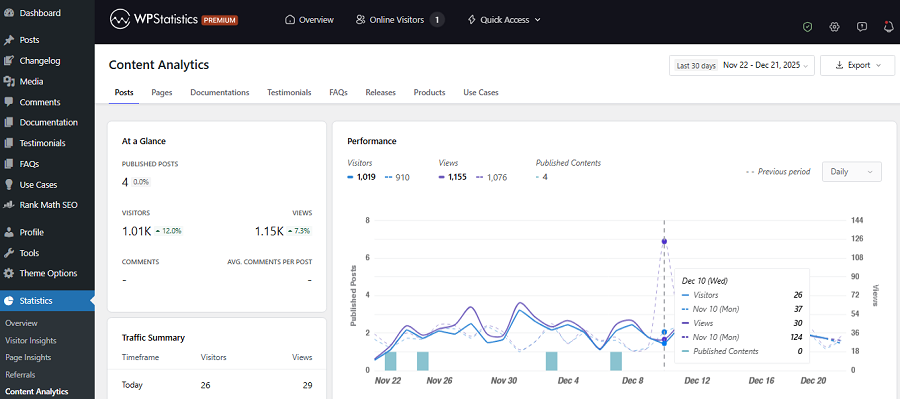
WP Statistics offers a complete set of content analytics features. It allows you to track the most popular blog posts and the most commented ones to find how your content updates impacted your posts.
Also, it gives you a segmented insight into other categories, like:
- Documentations
- Testimonials
- FAQs
- Releases
- Products
- Use Cases
You have to enable the Data Plus add-on on your dashboard to use this feature.
Conclusion
Content updates are really important for each website. However, without a real-time content performance tracking plan, you can’t be sure that you’re performing well.
So, apart from a strategic content audit approach, you need a WordPress content analytics tool.
WP Statistics is a great web analytics plugin that helps you measure the impact of content updates.
So, you can optimize your content with a data-driven method and improve your site’s performance in terms of SEO, engagement, and conversion. If you need help with content update tracking, don’t hesitate to contact us.
FAQs
Are content updates effective?
Yes! Updating existing content is one of the most effective SEO and performance strategies. Updating existing pages improves rankings, engagement, and conversions. Sometimes it’s even more effective than publishing new posts.
Can I track the impact of content updates on my site?
Absolutely! Using web analytics tools to track metrics like views, visitors, and top queries to determine if your content update is successful.
What’s the best tool to track content update impact?
For WordPress sites, WP Statistics is the best web analytics plugin. It offers the accuracy of GA4 while staying privacy-focused.