

How to use WordPress visitor analytics to improve your website’s performance?
Website analytics is an important part of running a successful business. However, many website owners, especially beginners, think traffic is the only metric that matters when analyzing the website.
If you want to optimize your site and build a strong strategy for its growth, you have to know your visitors and their interests.
This helps you generate targeted content and make your site more relevant to niche audiences.
That’s where visitor analytics comes in. Fortunately, a handful of tools give you detailed data on user behavior on your website. In this blog post, we’ll explain how to analyze user behavior to improve your website’s performance.
What You Can Learn from WordPress Visitor Analytics
Let’s see why you have to track the behavior of your visitors on your site. Here are the most important details visitor analytics gives and the way you can use them to improve your site’s performance:
Traffic Sources: Where Your Visitors Come From
The number of visitors is important, but it’s not enough. You have to know how people find your website to recognize the most useful channels for your website.
You must ask yourself if visitors are coming from Google searches, social media links, newsletters, or referral sites.
For example, if most of your visitors come from organic search, it shows that your SEO strategy is working well.
Also, if social referrals are leading to high conversion rates, you can count on social engagement or paid campaigns.
User Activity: What They Do on Your Site
If you want to know what your visitors like, you need to know what they do after landing on your site.
For example, if you’re running a blog, you have to know:
- The entry pages and exit pages
- The pages they view
- How long do they stay
- Which paths do they follow
This gives you very useful insights to optimize your content. If a blog post has lots of visitors but they leave it without visiting other pages, you have to change something.
In fact, the purpose of a page is not only to attract visitors, but to encourage them to take action.
To solve the problem, you can add related articles. Improve internal linking and work on CTAs to increase interactions.
Session Duration and Engagement
Session duration is the time visitors spend on your site in a single session. This is a measure of engagement rate and helps you understand how engaging your content is.
A short session means your content didn’t meet expectations. On the other hand, a long session means relevance and quality. You have to find what appeals more to your visitors and make them stay longer on your site.
Adding interactive items or improving the design of your website can improve engagement rates.
Popular Content
Top pages on your WordPress website are another important analytics metric that helps you understand your visitors’ behavior and interests.
Top pages are your content heroes that visitors like the most. Remember that you have to know the specific reason these pages attract traffic.
This way, you can repeat the success in your future content writing strategy. For example, tracking top pages on your website lets you know:
- Attractive keywords
- Useful information
- Tone of voice
- Visuals
- Shareable content
Once you identify the items your visitors like, you can audit your previous content and also generate new pages accordingly.
Exit Rates: Where Visitors Leave
Apart from the entry pages, you must monitor where your visitors leave your website. The exit rate is the percentage of visitors who leave a page without visiting other pages on your site.
Interpreting this metric might be tricky. A high exit rate isn’t necessarily bad because it can indicate the end of a successful user interaction. For example, an informational blog post’s purpose is to give a piece of information to users and gain traffic. So, a high exit page is not a bad sign for it.
But when key pages, like checkout or signup forms, have high exits, something’s off. User behavior analytics on your site can help you detect any problems and remove them.
Best Tools to Monitor Visitors’ Behavior on Your Website
Numerous analytics tools provide insights into user behavior on your website. Here is a list of the top 4 tools you can use for your WordPress website to track visitors on WordPress:
1. WP Statistics
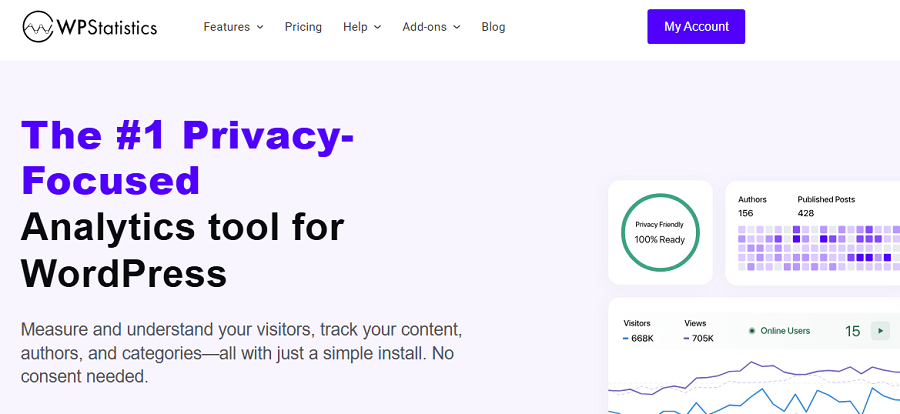
WP Statistics is a WordPress analytics plugin that lets you track user behavior entirely within your own site.
It doesn’t need any third-party connections or data sharing, making it a great privacy-first visitor tracking tool. It has a user-friendly dashboard and offers an easy setup and configuration process.
WP Statistics provides free visual reports for tracking visitors on WordPress using important metrics, like:
- Traffic
- Referrers
- Browsers
- Search terms
- Visitor locations
- Daily visit peaks
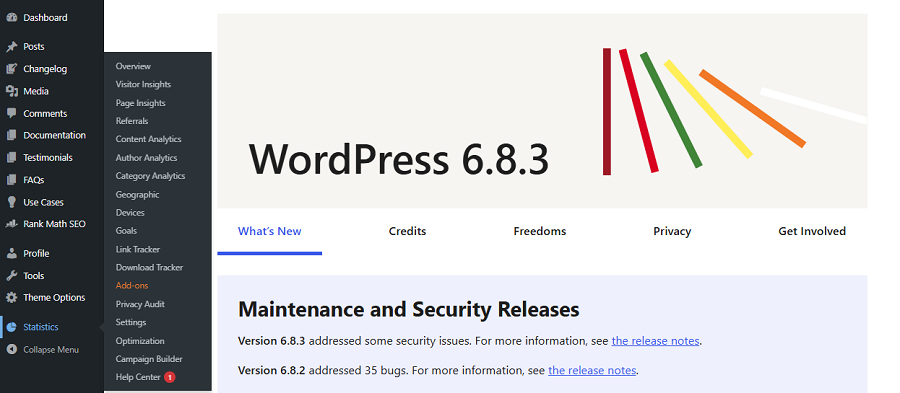
Additionally, you can enable paid add-ons like Data Plus and Marketing to have more advanced reports about your campaigns.
It’s GDPR-compliant by default and lets you easily anonymize IP addresses and avoid collecting and storing highly personal details.
So, if you want an accurate tool that can monitor visitors on your WordPress website without violating privacy, WP Statistics is your best choice.
2. Google Analytics 4
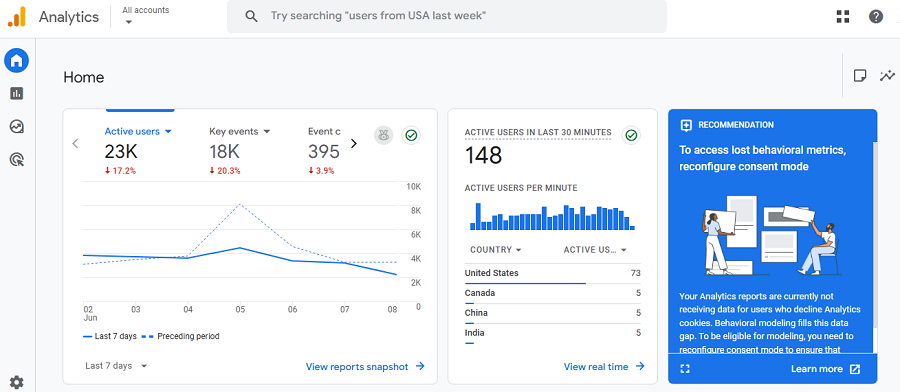
Google Analytics 4 is the most famous web analytics tool, and of course, the heaviest. GA4 is known for its comprehensive data collection and integration with other Google tools, like Google Ads, Search Console, and Google Tag Manager.
It provides detailed insights to help you measure website performance, including:
- Behavioral metrics
- Predictive analytics
- Advanced segmentation
Although GA4 is the most accurate tool to track user behavior, it comes with two problems: a learning curve and privacy concerns.
GA4 has a crowded interface that is difficult to understand for beginners. Also, it operates outside of WordPress, and you need to switch your dashboard every time you want to track its performance.
Moreover, GA4 monetizes your website’s data and shares it with other parties for advertising. That’s why users see relevant ads on various websites.
When you use GA4 to monitor your users’ behavior, you have to use cookie consent banners to stay compliant with data protection regulations like GDPR.
3. Matomo
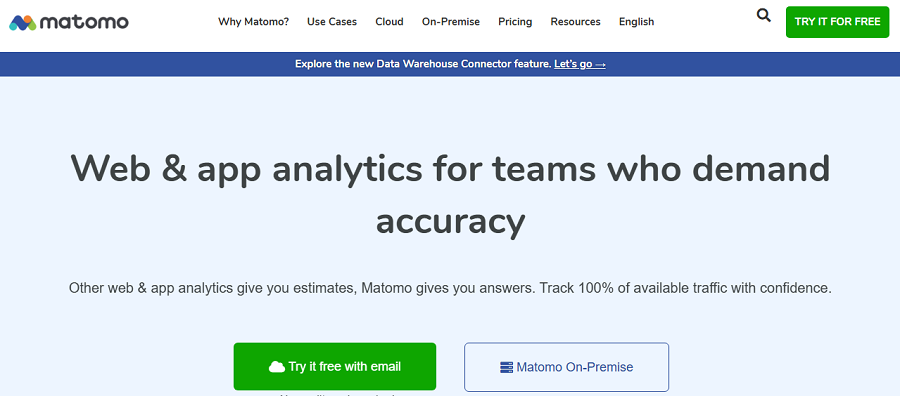
Matomo is also a privacy-focused alternative to GA4. It focuses on transparency and allows full data ownership.
Matomo is famous for its visual reports like heatmaps, goals, and session recordings. It’s a great option for large websites and organizations that need privacy-first analytics along with detailed reports.
4. Jetpack Stats

Jetpack Stats is part of the Jetpack suite and offers a simple way to monitor traffic from your WordPress dashboard.
It’s ideal for personal blogs or small sites that don’t need complex event tracking. It shows you useful details, including:
- Top pages
- Referrers
- Search terms
If you want something less detailed than GA4 with minimal configuration and GDPR compliance, Jetpack is a great choice.
| Feature / Plugin | WP Statistics | GA 4 | Matomo | Jetpack Stats |
| Privacy Compliance | Excellent | Consent Required | Excellent | Good |
| Ease of Setup | Easy | Difficult | Technical | Very Easy |
| Advanced Tracking | Paid | Extensive | Extensive | Limited |
| Performance Impact | Low | Low | Moderate | Very Low |
| Cost | Free/Paid | Free | Free/Paid | Free/Paid |
Use WP Statistics to Track Visitors on WordPress
Here is a step-by-step guide to visitor analytics on WordPress:
Step 1: Install and Activate WP Statistics
Log in to your WordPress admin dashboard and go to Plugins → Add Plugin. Then, write “WP Statistics” in the search bar to find the plugin.
Now, click Install, and after the process is done, tap Activate. When you activate the plugin, you can see a new Statistics tab in your WordPress sidebar.
Step 2: Configure Basic Settings
WP Statistics allows you to make a lot of customization before starting your analytics journey.
It’s good to spend a few minutes determining your preferences. Under the Statistics tab, click Settings and customize the following variables:
- Track Logged-In User Activity: You can activate it to monitor user behavior and store their details with their WordPress User IDs. Note: This will have privacy impacts.
- Online Visitors: You can enable the online visitors tracking feature to have the ability to understand their journey and how long they have been on your site.
- Anonymization: By default, WP Statistics anonymizes and hashes IP addresses. Note: You can disable this option, but there will be privacy impacts.
- Bypass Ad Blockers: WP Statistics can dynamically load the tracking script with different names and addresses to bypass ad blockers. Of course, you have to enable this feature.
You can explore more and determine more options to have a fully customized tracking dashboard.
Step 3: Learn the WP Statistics Dashboard
Open Statistics and get familiar with the dashboard. Its interface is straightforward, and non-technical users can easily learn it.
Top menus on the dashboard are:
- Overview
- Page Insights
- Visitor Insights
- Author Analytics
- Content Analytics
- Geographics
- Devices
Step 4: Check the Overview
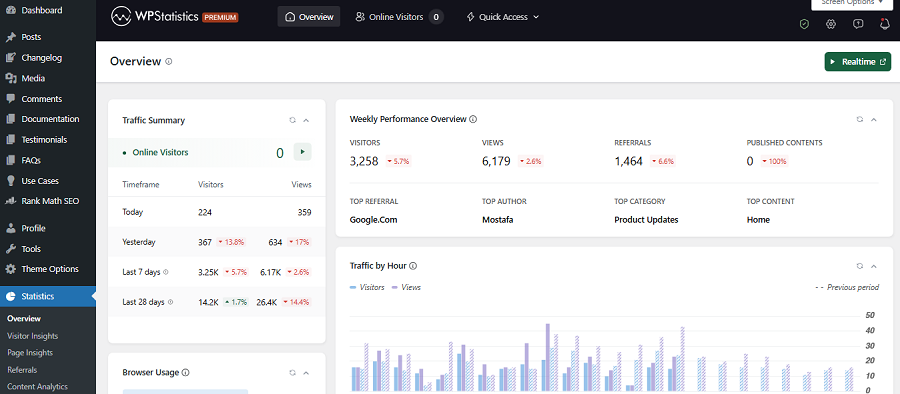
Click Statistics → Overview to see a quick view of your user activity. For example, it’s good to check:
- Traffic Summary: It shows the traffic summary in daily, weekly, and monthly intervals.
- Performance Overview: A quick snapshot of visitors, views, and referrals.
- Top Pages: A summary of top pages with the most views.
- Top Referring: Top websites that have sent traffic to your site.
The Overview page on WP Statistics is what you have to check daily. It’s great for detecting traffic spikes/drops, campaign results, and other important changes.
Step 5: Explore Visitor Insights
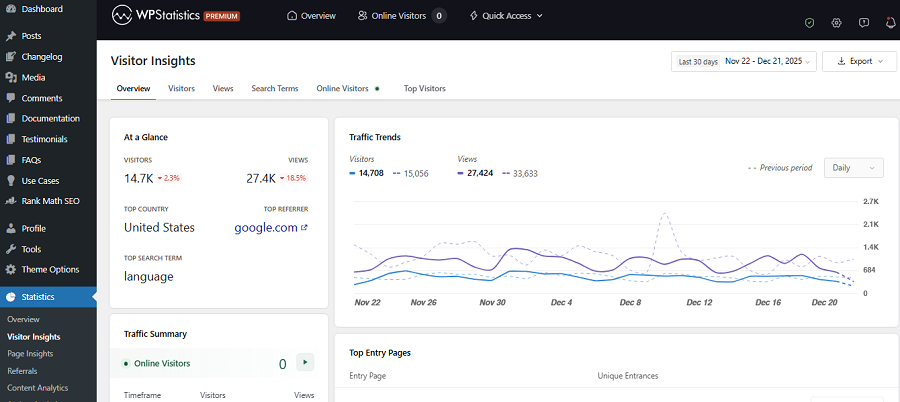
Go to Visitor Insights to dig deeper into how visitors interact with your site. This is the most important section to analyze visitors’ behavior on your site.
Here, you can find:
- Number of visitors
- Number of views
- Search Terms
- Online Visitors
- Top Entry Pages
- Most Active Visitors
As you can see, these details help you understand what your visitors like. To find more details about the pages visitors like the most, go to Page Insights to see Entry Pages and Exit Pages.
Step 6: Analyze Content and Author Performance
Go to Statistics → Content Analytics to view detailed stats for each post or page.
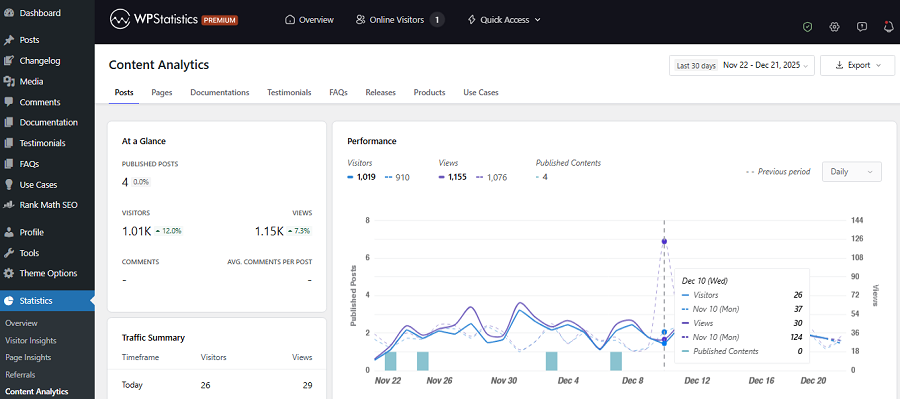
Here you can identify high-performing articles and find topics that readers like. Also, you can see which writer has performed better.
Step 7: Track Geographic and Device Data
If you know the location and the device of your visitors, you can optimize the content and the design of your website to get maximum results.
Go to Statistics → Geographics and check maps where your audience is located. You can also check the top countries, regions, and cities.
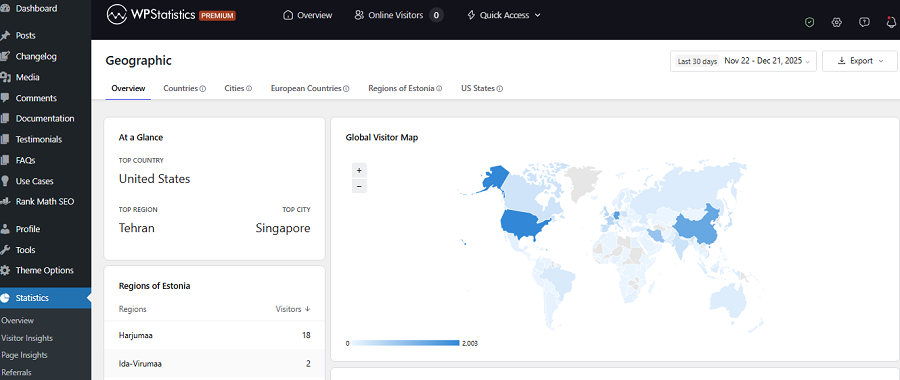
You can use this data for:
- Language options
- Ad targeting
- Posting schedules
You can also go to Devices for details on browsers, operating systems, and screen sizes. This helps you optimize your pages for the device that brings the majority of visitors to your site.
Privacy & Compliance Considerations about WordPress Website Analytics
Although tracking users is really useful, it might violate the privacy rules. In fact, you can’t track any data and store or share it anytime you want.
Remember that each country has its own data protection regulations. For example, the General Data Protection Regulation (GDPR) in Europe and the California Consumer Privacy Act (CCPA) in the USA set standards for data collection.
According to these rules, you have to let users know what data you’re collecting from them. Also, you have to get their consent before storing personal identifiers like IP addresses.
As said earlier, tools like WP Statistics let you determine the level of privacy in your analytics strategy. For example, you can disable anonymization. Of course, in this case, you have to use cookie banners on your website and let people know you’re tracking their behavior.
Conclusion
If you want to keep your website’s visitors engaged, you have to know what they want. WordPress visitor analytics helps you track their behavior and optimize your website accordingly.
By tracking metrics like entry traffic sources, entry pages, exit pages, and search terms, you can customize your content and your page design based on your audience’s interests.
You can also find weaknesses and content gaps on your site and include them in your website audit strategy.
Tools like WP Statistics allow you to monitor your visitors in real time without switching your dashboard.
So, don’t wait. Install it for free and try its capabilities in monitoring visitors’ behavior on your WordPress site.
FAQs
How to check visitor stats on WordPress?
You can check visitor stats using a plugin like WP Statistics. When you install, you can see traffic reports directly in your WordPress dashboard.
Does WordPress track site visitors?
No! WordPress doesn’t track visitors itself. But you can install free plugins like WP Statistics to collect and view visitor data on your dashboard.
How to check website visitor statistics legally?
Use GDPR-compliant tools like WP Statistics. When you use these tools, you don’t need cookie banners on your site.