
Monitoring your website performance is essential if you want to get to the top and grow your business.
Table of Contents
You have to track numerous metrics to make sure everything is OK, but some of them are so important that you have to check them every day.
Tracking page views is one of the most important tasks of SEO strategists and web analysts. The thing is that if you want to use third-party tools, you have to spend more time and also put your users’ privacy at risk.
Thanks to WordPress web analytics plugins, you can track page views in WordPress without switching your dashboard or sharing data with other parties.
In this blog post, we’ll explain how to monitor page views on your WordPress website and how to use the results to improve its performance.
The Importance of Tracking Page Views for Your Website
First, let’s see why you have to track the number of views of each page on your site. In short, page views tell you how often your content gets seen.
This is one of the most important metrics in web analytics and is a strong signal of the page’s performance.
A visitor who found your page, stayed, and engaged must have been interested in that content.
In fact, page views show demand for content. The higher the page views, the higher the demand for that content.
For example, imagine that one of your articles gets 10x more views than another blog post. It’s a clear sign that your audience prefers that topic and article. So, you can use the data to plan better content and drive conversions.
When you track page views, you can:
- Top-Performing Content
- Low-Traffic Insights
- Audience Behaviour
- Conversion Optimisation
Best Tools to Track Page Views in WordPress
Here is a list of the top web analytics platforms that can monitor your website’s page views:
1. WP Statistics: Best for Privacy and Simplicity
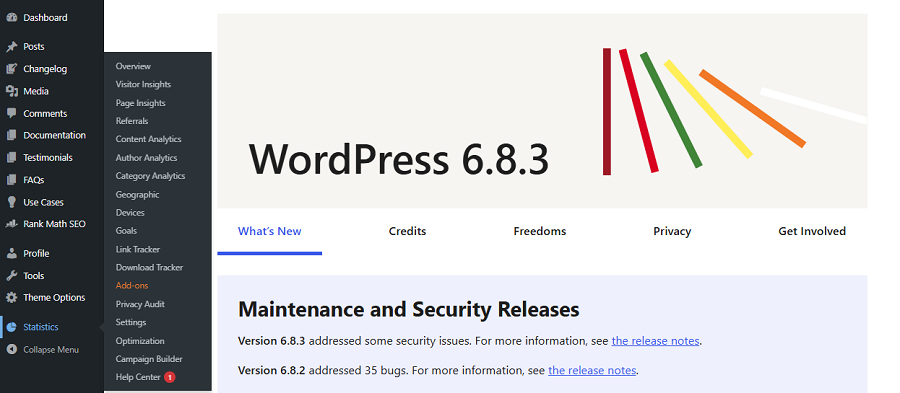
WP Statistics is one of the best web analytics plugins for WordPress websites. It’s a privacy-first tool that offers a wide variety of reports. It helps you track the performance of your website while staying compliant with data protection rules.
If you want to monitor the behavior of your website’s visitors without sharing their personal data with third-party tools, WP Statistics is the best choice for you.
Using this plugin, you can track daily visits, referrers, keywords, locations, and devices. The good news is that you can check all of these metrics without switching your dashboard.
Pros of WP Statistics
- 100% WordPress-based
- No external data sharing
- GDPR-compliant
- Tracks all the necessary metrics
- Clear and user-friendly dashboard
- Visualized reports
Cons of WP Statistics
- Advanced plugins can be expensive for small businesses.
If you want detailed analytics without leaving WordPress, you’d better try WP Statistics for free. You can also go premium if you need more advanced data.
2. Jetpack Site Stats: Best for Beginners

Jetpack Site Stats is part of the Jetpack plugin suite. If you just want quick, readable insights, it’s perfect for you.
It can track page views, referrers, top pages, and visitor counts. Jetpack offers a simple dashboard, which is great for beginners and personal bloggers.
Pros of Jetpack Site Stats
- One-click setup
- Clean, easy-to-read dashboard
- Built by WordPress’s own team
- Integrates with other Jetpack features (security, backups, etc.)
Cons of Jetpack Site Stats
- Less detailed than standard analytics tools
3. Google Site Kit: Best for Data Integration
Google Site Kit is a great plugin that connects your WordPress site directly to Google tools, like:
- GA4
- Search Console
- PageSpeed Insights
- AdSense.
As a result, you can view your important insights and monetization data in one place. So, you don’t need to switch your dashboard when you want to check page views. Apart from page views, it shows impressions, CTR, and top-performing pages on your WordPress dashboard.
It’s much easier to use compared to GA4 itself. So, if you’re a beginner, it’s good to use this plugin first, and then for more advanced reports, go for GA4.
Pros of Google Site Kit
- Multiple Google tools in one plugin
- Reliable and highly detailed data
- SEO and monetization insights
- Automatically verifies ownership with Search Console
Cons of Google Site Kit
- Privacy issues
4. MonsterInsights: Best for eCommerce

MonsterInsights is another great plugin that gives you the power of GA4 without its complexities.
It’s designed for marketers who want actionable insights rather than raw data.
MonsterInsights helps you track page views, user engagement, affiliate clicks, eCommerce conversions, and even scroll depth.
It includes enhanced eCommerce tracking for WooCommerce, Easy Digital Downloads, and MemberPress.
Pros of MonsterInsights
- Simple Google Analytics setup
- No manual tracking codes
- Advanced event and eCommerce tracking
- Real-time stats and traffic reports
- Custom dimensions
Cons of MonsterInsights
- The free version is limited
- Pro plans start at a premium price
- Privacy issues
This plugin is great for marketers, agencies, and online stores that want in-depth analytics tied to conversions.
5. Matomo Analytics: Best for Privacy-Focused Businesses

Matomo is an open-source analytics platform that gives you ownership of your data. You can host it on your own server or use the official Matomo Cloud service.
Using the Matomo for WordPress plugin, you can track page views, sessions, bounce rate, goals, and campaigns.
Just like Google Analytics, it gives you a full analytics dashboard, but with 100% GDPR compliance and no external data sharing.
Matomo is perfect for enterprises, NGOs, or agencies that handle sensitive user data and need privacy-first tracking.
Pros of Matomo
- Self-hosted
- Privacy-friendly analytics
- Real-time data and heatmaps available
- GDPR, HIPAA, and CCPA compliant
- Detailed visitor logs and campaign tracking
Cons of Matomo
- Heavier setup than WP Statistics or Jetpack
- Advanced features require a paid add-on
Here is a quick comparison between these tools to help you choose the best one for your business:
| Tool | Ease of Use | Key Features | Pricing |
| WP Statistics | Very easy | Page views, referrers, search keywords, and countries | Free + premium add-ons |
| Jetpack Site Stats | Very easy | Simple page view stats, referrers, top posts | Free |
| Google Site Kit | Easy | Connects GA, Search Console, AdSense | Free |
| MonsterInsights | Easy | GA integration, eCommerce, events, custom tracking | Freemium (Pro from ~$99/yr) |
| Matomo Analytics | Difficult | Privacy-first analytics, goals, heatmaps | Free / Paid Cloud Plan |
How to Track Page Views Using WP Statistics
Now that you know your analytics options, let’s see how to track page views on your WordPress website.
Here’s the step-by-step process to set up and start tracking your WordPress page views using WP Statistics.
Step 1: Install the Plugin
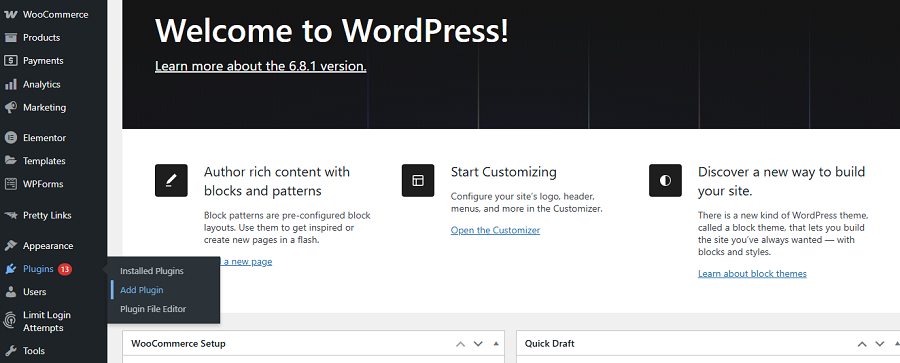
In your WordPress dashboard, go to Plugins → Add Plugin. Then, search for “WP Statistics” and when you find the plugin, click Install Now. Finally, you can tap Activate, and you’re all set.
Step 2: Configure Basic Settings
After activation, go to Statistics in your dashboard’s sidebar and click Settings. Now, you can customize the plugin to track what you want.
For example, under General, determine your timezone and site domain, and choose whether to track logged-in users or exclude bots. Remember that WP Statistics is GDPR-compliant by default, but if you activate such items, you might have to use cookie banners to avoid privacy issues.
You can also exclude your own ID from tracking so that you get more exact page view results.
Step 3: Start Tracking Data
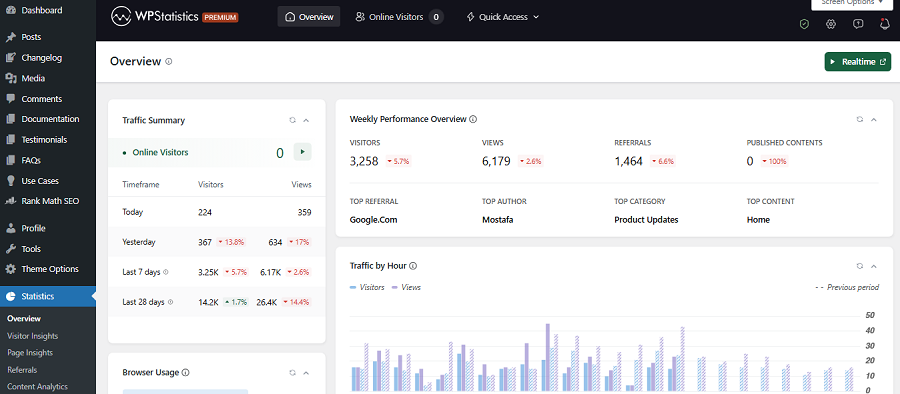
After configuring the plugin, it automatically begins collecting data. Now, you can check important metrics in different sections, including the Overview:
- Traffic Summary: Total views of your website and the number of visitors
- Referrals: The number of sources that have referred to your site
- Top Search Queries: Keywords people used to find your site
Step 4: Review Page Insights
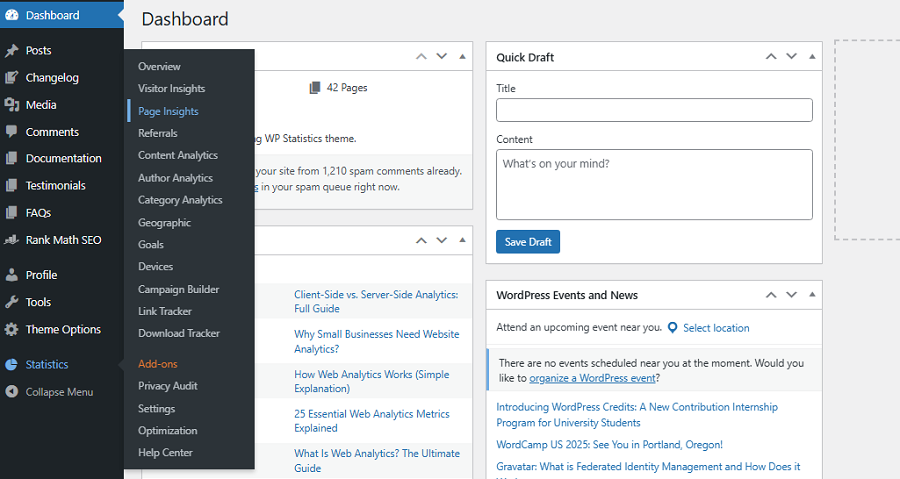
In the Overview section, you can see the total number of views, not page views. To check this, you can go to Statistics → Page Insights.
Here you can see the list of top pages by views, along with the top entry and exit pages that help you interpret the results better.
How to Interpret Page Views Data
Now, you have learned how to track page views on your site. Let’s see how to interpret it to improve your website’s performance.
Here is how:
1. Identify Best-Performing Content
Look for pages that receive the highest page views. Try to recognize the type of content that your audience likes. For example, if best-performing pages are your tutorial posts, you have to focus more on them.
2. Spot Worst-Performing Content
Low page views don’t always mean failure. Sometimes they mean opportunities for growth. First, you have to check what’s wrong with them.
For example, look at the internal links, keyword optimization, visuals, speed, etc. Then, perform a site audit and wait for the result. If there are no changes, it might signal that your audience doesn’t like that type of content.
3. Track Trends Over Time
Page views are not just a number. You have to look for the trend to see if your views are climbing month by month or not.
A steady increase indicates your marketing and SEO strategies are working. On the other hand, sudden drops signal a problem, like broken links, technical issues, or content gaps.
4. Compare Traffic Sources
Try to find the source of your page views to get more details about your audience. It’s important to know whether visitors come from search engines, social networks, or referrals.
When you know the source of your page views, you can make better decisions about your future strategy.
For example, if organic traffic is high, your SEO is working well. If not, you need to consider refreshing your content to optimize it.
You can consider the following table as a guide to interpret page views data on your WordPress website:
| Situation | What It Means | Action Tip |
| High views, low time | Visitors lose interest fast. | Improve intro and visuals. |
| Low views, high time | Great content, poor reach. | Promote or link internally. |
| Traffic spike | This post is trending. | Update and add strong CTAs. |
| Steady growth | SEO is working well. | Keep publishing similar content. |
| Sudden drop | Possible issue or SEO loss. | Check links, speed, or rankings. |
| Top topics repeat | Clear audience preference. | Create more on those themes. |
Conclusion
Tracking page views is one of the most important tasks you have to do to measure website engagement. You need to know which page is getting maximum exposure to be able to build a strong strategy for the future. This way, you can generate more sought-after content and get higher traffic. Thanks to the web analytics plugin, you can now count page views in WordPress without relying on third-party tools. WP Statistics is one of the best plugins that gives you accurate reports on page views without violating user privacy. If you want to keep your users’ data safe, it’s the best choice for you.
FAQs
How to track page views on WordPress?
Install a plugin like WP Statistics or Google Site Kit to automatically collect and display page view data in your dashboard.
Can WordPress see who viewed your page?
No! WordPress tracks views anonymously. You can see traffic numbers, not individual identities.
How do I check how many views a webpage has?
Go to your analytics plugin’s report section to view total and daily counts. For example, Statistics → Pages.
Can you track user activity on a website?
Yes, with tools like Hotjar or WP Statistics add-ons, you can track clicks, sessions, and navigation patterns, all without identifying users.